
ASUS Gives an AI Agent Control of the Monitor

ASUS DisplayWidget Center adds a CLI and Agent Skill, enabling AI agents to adjust settings such as brightness, color temperature, and refresh rate through natural language. What truly matters is not that you can “chat” with it, but that the monitor has, for the first time, become a programmable system resource.
ASUS Monitors Can Now Understand Plain Language
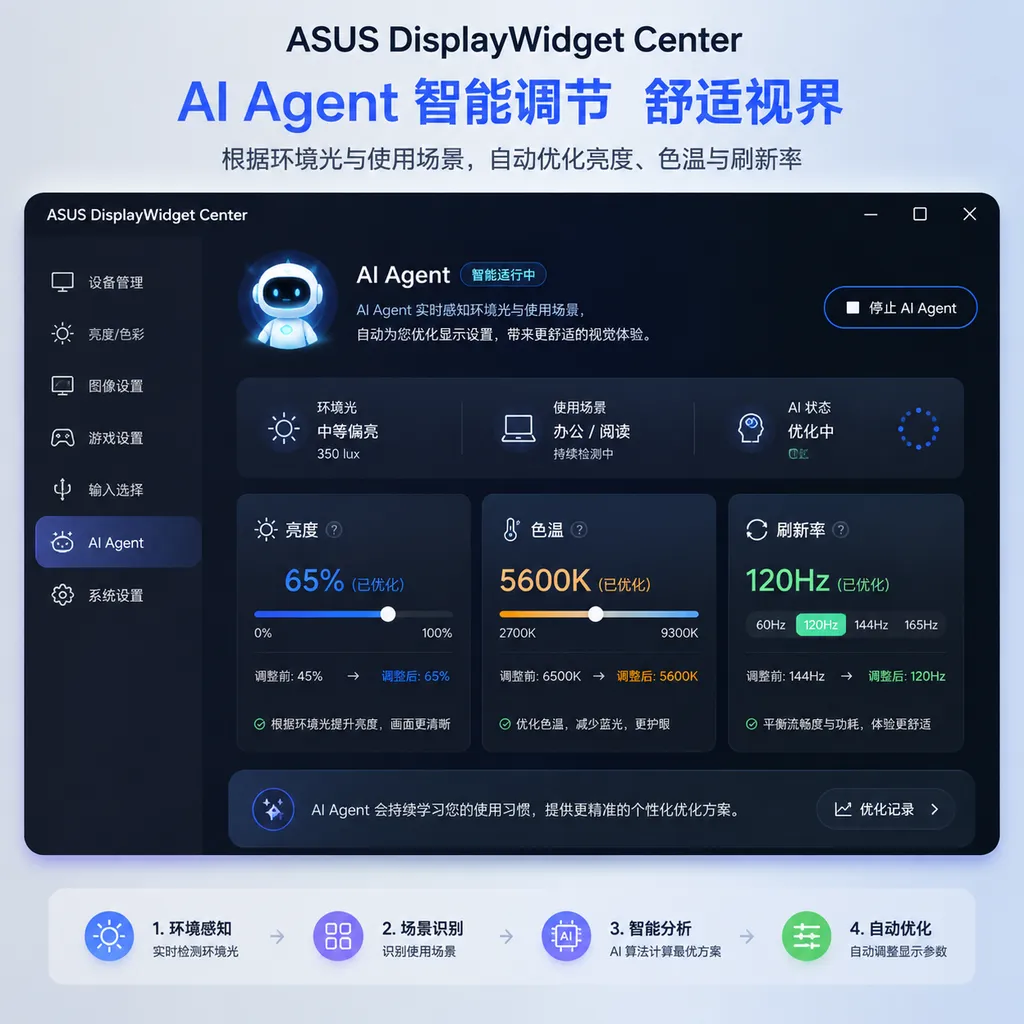
On August 6, ASUS updated its monitor management software, ASUS DisplayWidget Center, adding a command-line interface (CLI) and an Agent Skill. Information released today (August 7) shows that users can connect AI agents to the software and adjust monitor brightness, color temperature, color mode, refresh rate, and other settings using natural language—without repeatedly pressing physical buttons to navigate the OSD menu.
On the surface, this merely adds a “voice remote control” layer to the monitor. But what really matters is not natural language itself. Rather, ASUS has opened up a set of hardware controls previously locked inside a graphical interface, making them accessible to programs and agents.
In other words, the monitor is no longer merely the endpoint for a computer’s visual output. It is also becoming a device node in automated workflows—one that can interpret intent and execute policies.
The CLI Matters More Than the Words “AI Feature”
Previously, there were generally two ways to adjust monitor settings: use the joystick or buttons on the back of the monitor to search through layers of OSD menus, or install the manufacturer’s software and click sliders and drop-down menus in a desktop graphical interface.
Both methods work, but neither is well suited to automation.
The value of a CLI is that it turns “clicking a particular button” into “executing a specific action.” Once operations can be triggered through the command line, PowerShell, batch scripts, enterprise IT management platforms, and desktop AI agents can all incorporate monitors into their workflows.
Conceptually, the invocation chain would look something like this:
Natural-language instruction from the user
        ↓
AI Agent identifies the intent and parameters
        ↓
Invokes the DisplayWidget Center Agent Skill
        ↓
Maps the request to a supported CLI operation
        ↓
The software writes settings such as brightness,
color temperature, and refresh rate to the monitor
The Agent does not directly “control the monitor circuitry.” Instead, it translates ambiguous human expressions into structured actions. For example, “Make documents more comfortable to read at night” is not itself a monitor setting. The Agent must break it down into actions such as lowering the brightness, enabling a blue-light filter, and shifting the color temperature to a warmer range, then hand those actions off to DisplayWidget Center for execution.
One representative example disclosed by ASUS is “Turn on gaming mode.” After learning the user’s habits, the AI can adjust the refresh rate, brightness, and flicker-reduction settings all at once instead of requiring the user to change each item individually. Another example combines calendar information with time-based scheduling: use a 6500K color temperature and disable the blue-light filter in the morning, then lower the brightness, enable the blue-light filter, and adjust the color temperature to 4000K at night.
This is why opening up both the CLI and the Agent Skill matters: the former provides a stable, testable execution interface, while the latter tells the agent “what capabilities are available, how parameters should be filled in, and under what circumstances each capability should be invoked.” With only a natural-language chat interface, this feature could easily become little more than a demo. The CLI gives it a genuine foundation for developers to integrate and deploy it.
It should be noted that the publicly available information does not currently provide the CLI’s full command names, parameter formats, or Agent Skill specification. The following pseudocommands merely illustrate the kinds of automation it might support and do not represent official ASUS syntax:
# Pseudocode illustrating the invocation concept only; not official commands
monitor set brightness 35
monitor set color-temperature 4000
monitor set refresh-rate 165
monitor apply-profile gaming
For developers, the more important questions going forward are not what the chat window looks like, but whether ASUS will provide complete parameter documentation, status queries, error codes, device enumeration, configuration import and export, and a stable version-compatibility policy. Being able to set values is not enough. An interface is suitable for production only if it can query the current state, verify execution results, and roll back after a failure.
Natural Language Is Well Suited to Ambiguous Intent, but Fixed Tasks Do Not All Need a Model
The most immediate benefit of handing monitor control to an AI Agent is that it reduces the effort involved in coordinating multiple settings.
Esports is a typical use case. Users have different requirements for different games: competitive shooters may benefit from a high refresh rate and greater brightness, story-driven games place more emphasis on shadow detail and color reproduction, and late-night gaming requires tighter control over brightness and blue light. Previously, these settings were generally scattered across the monitor OSD, graphics card control panel, and game configuration. Switching setups meant navigating multiple interfaces.
Office scenarios are similar. When a designer opens photo-editing software, the monitor could switch to a mode that emphasizes color accuracy. During a video conference, it could reduce brightness. When the user starts reading a long document, it could switch again to a warmer color temperature and low-blue-light profile. If the Agent can select presets based on the foreground application, time, calendar, and user preferences, the experience will indeed be smoother than making adjustments manually.
But not every automation task requires a large language model.
For a deterministic task such as “Set the brightness to 30% every night at 10 p.m.,” a system scheduler or ordinary script would be cheaper, more reliable, and easier to audit. Large language models are genuinely good at understanding incomplete expressions such as:
- “The screen is a little harsh, but don’t make it too yellow.”
- “I’m about to play an FPS; prioritize smoothness.”
- “I need to proof a print layout. Switch to a profile suitable for evaluating color.”
- “Restore my previous settings after the meeting.”
These instructions contain preferences, context, and multiple constraints, making it difficult to write rules in advance for every possible phrasing. The Agent can translate intent into parameters, but the execution layer should remain deterministic. The most sensible architecture is not to let the model manipulate hardware freely, but to let it select actions within strictly defined tool boundaries.
Refresh Rate Cannot Be Increased Indefinitely with a Single Command
The adjustable settings listed by ASUS include refresh rate, which is far more complicated than brightness or color temperature.
The refresh rates actually available depend on the monitor model, current resolution, connection interface, cable bandwidth, graphics card output capabilities, and operating system configuration. Even if the Agent receives an instruction to “max out the refresh rate,” it cannot magically turn a 60Hz panel into a 240Hz one, nor can it ignore bandwidth limitations at high resolutions.
Ideally, the execution tool should first read the modes supported by the device, then select from the valid list. For example, when the user requests the “highest refresh rate,” the system needs to determine whether the current resolution is 4K, 2K, or 1080p, whether HDR is enabled, and whether the DisplayPort or HDMI link supports the target combination. Switching refresh rates may also cause a brief black screen, so confirmation should preferably be required if the change could interrupt ongoing work.
This illustrates the difference between a hardware Agent and an ordinary chatbot: an incorrect answer is usually just an information-quality issue, but executing an incorrect hardware setting can directly interrupt the user’s work. The tool layer must therefore be more conservative than the model layer.
The Enterprise Value May Be Greater Than the Consumer Value
ASUS also mentioned that IT administrators can deploy the software centrally through platforms such as Microsoft Intune and adjust settings across multiple monitors at once.
This may be the most practically valuable part of the update.
In enterprise environments, monitor settings have long occupied a gray area where IT can manage the computer but not the screen. Operating systems, applications, and security policies can be distributed centrally through MDM platforms, but external monitors usually rely on employees to adjust them manually. This has little impact in a typical office, but in fields such as design, medical imaging, video production, trading floors, and educational computer labs, inconsistencies in brightness, color temperature, and color modes can directly affect the work experience and even the resulting judgments.
If DisplayWidget Center can be installed at scale and configured through its CLI, administrators could incorporate monitor policies into device management:
- Deploy different display modes by department;
- Centrally reduce brightness and color temperature for night-shift workstations;
- Restore standard configurations on a schedule for shared computers or computer labs;
- Deploy standardized color presets to design teams;
- Remotely read or reset relevant settings during troubleshooting.
However, “support for Intune deployment” does not mean that the software already provides complete monitor device-management capabilities. Enterprises also need device inventories, policy-application status, failure retries, log retention, permission isolation, and configuration rollback. Different monitor models may support different settings, so capability detection must be performed before configurations are deployed at scale. Otherwise, the same policy could produce different results on different devices.
If Agents Can Control Hardware, Permission Boundaries Must Be Defined First
Once hardware controls are exposed to agents, the security implications become more complex than “the brightness was accidentally changed once.”
If the Agent Skill ultimately operates through a local CLI, developers and administrators need to consider at least the following:
- Parameter allowlists: The Agent should be allowed to invoke only explicitly exposed monitor operations and must not receive unrestricted system shell access;
- Range validation: Brightness, color temperature, and refresh rate must be restricted to the valid ranges supported by the device;
- Confirmation for high-risk actions: Changes to the refresh rate, input source, or other settings that could interrupt the display should require secondary confirmation;
- State readback: The current configuration should be read after execution to avoid situations where the command reports success but the setting was not actually applied;
- Operation logs: Enterprise deployments should record who modified which devices, when, and through which Agent;
- Fast recovery: Users should be able to restore the last known working configuration through a keyboard shortcut or fixed preset;
- Context isolation: Text from calendars, web pages, or documents must not be turned into hardware instructions without confirmation.
The last point is particularly important. If the Agent reads calendars and other content to determine monitor policies, external text could indirectly influence tool calls. A poorly designed Agent might interpret instructions in calendar titles, web pages, or even chat messages as user intent. The solution is not simply to make the model “smarter,” but to strictly distinguish data from instructions and validate policies before tools are executed.
ASUS’s Move Is Not Flashy, but It Is Heading in the Right Direction
Over the past two years, a common approach to making hardware “AI-powered” has been to add a chatbot or insert access to a cloud model into control software. The problem is that such features often add only a dialog box without making the device itself any more programmable.
This DisplayWidget Center update is more pragmatic. Instead of trying to make the monitor run a large model itself, ASUS has opened up a CLI and Agent Skill so existing agents can invoke the hardware’s capabilities. It is more like adding a standardized set of “robotic-arm interfaces” to the monitor: the model interprets human language, the software performs the actions, and each side does what it does best.
Of course, it is too early to conclude that ASUS has established a universal Agent standard for monitors. The publicly available information does not specify which models are supported, what description format the Agent Skill uses, or whether third-party extensions are allowed. Nor does it show details of status queries, permission controls, or compatibility across versions. It is better viewed as a promising starting point than a mature ecosystem.
But the direction is already clear: only when CLIs, tool descriptions, and device-management capabilities gradually become standard features of hardware software can AI agents evolve from “writing something for you” to “managing your physical environment for you.” Monitors are merely one relatively safe and practical part of that process. Audio devices, lighting, cameras, routers, power management, and conference-room systems may all be incorporated into Agent workflows along the same path.
For developers, the most important takeaway from this update is: Natural language is only the entry point; the programmable interface is the capability itself.
References
- ITHome: No More Repeated OSD Navigation—ASUS DisplayWidget Center Monitor Management Software Integrates AI Agents — Introduces the update’s CLI, Agent Skill, natural-language control scenarios, and large-scale deployment capabilities through Intune.