
<think>**Translating concise headline** </think> Microsoft Uses AI to Reduce WinUI Development to 30 Minutes

<think>**Clarifying translation style and terminology** </think> Microsoft recently released a WinUI AI quick-start guide. With VS Code, the WinApp CLI, GitHub Copilot, and WinUI Agent, developers can create, test, package, and publish WinUI 3 apps from an empty folder. More importantly, this solution also targets the migration of legacy WPF and UWP applications.
<think>Translating full markdown content
</think>Microsoft Uses AI to Compress WinUI Development into 30 Minutes
Microsoft is taking a more realistic approach to reviving the native Windows application ecosystem: instead of first requiring developers to relearn an entire complex toolchain, it is allowing AI agents to take over the most tedious and error-prone parts.
On September 6, Microsoft released a new AI-assisted quick-start guide for Windows application development. According to the guide, developers can start with an empty folder and use VS Code, the Windows App Development CLI (referred to as the winapp CLI), .NET 10, WinUI project templates, and GitHub Copilot to create, run, test, and package a WinUI 3 application—and submit it to the Microsoft Store—in about 30 minutes.
The biggest change in this workflow is that Visual Studio is no longer a hard requirement for creating WinUI applications. Most of the tools Microsoft provides are free or offer free versions, and developers can even complete most of the work in VS Code and the terminal.
Of course, 30 minutes is closer to “getting an entire workflow to run end to end” than to building a commercial application from scratch that can be maintained over the long term and released to production. What Microsoft is really trying to validate this time is whether AI can turn native Windows development from a high-barrier engineering task into a standardized process that more developers are willing to try.
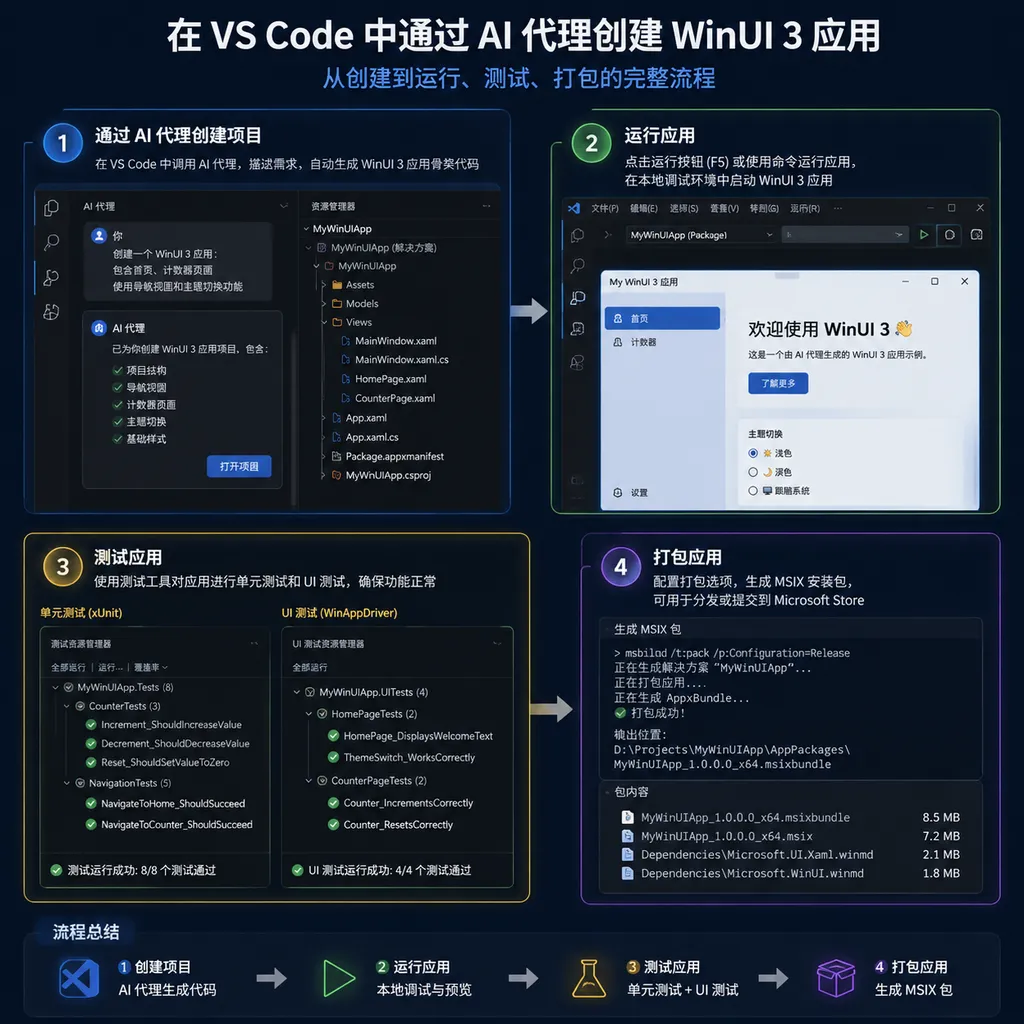
It Is Not About Chatting with Copilot, but Having an Agent Execute Tasks
The most easily misunderstood part of this solution is WinUI Agent.
It is not the general-purpose Copilot chat window that people are familiar with, nor is it simply a tool that converts a natural-language sentence into several blocks of XAML code. Microsoft provides dedicated agent plugins and skills for WinUI scenarios, enabling AI to perform a relatively complete set of development tasks centered around Windows App SDK, WinUI 3, and .NET 10, including:
- Creating WinUI project scaffolding and navigation structures;
- Generating XAML pages and C# logic;
- Adding controls, events, and common interactive features;
- Checking whether the code and UI implementation follow WinUI design conventions;
- Generating and running Windows UI automation tests;
- Packaging MSIX installation packages;
- Assisting with submission to the Microsoft Store;
- Analyzing WPF and UWP projects and providing migration recommendations.
In other words, Microsoft wants AI agents to act not as “code completion tools,” but as junior engineers familiar with the Windows application development process. Developers describe the desired outcome, while the agent breaks down the tasks, modifies multiple files, runs the project, and then continues making corrections based on the results.
This differs from the traditional way of using Copilot. Traditionally, developers often select a section of code and ask AI to complete or explain it. Agent-based development is more like submitting a small requirement through the terminal, such as: “Create a to-do application with side navigation that supports adding, completing, and deleting tasks, and generate UI tests for the core operations.” The agent independently determines which files should be created, which controls should be used, and how the application should be run and verified.
The 30-Minute Workflow: From an Empty Folder to Store Submission
The path provided by Microsoft can be divided into five stages.
1. Build the Project Skeleton with a Template
Developers do not need to manually write the .csproj file, application entry point, window initialization, or basic navigation structure. A runnable WinUI 3 project can be created directly using the dotnet new template.
The minimal path provided in Microsoft's documentation looks similar to this:
dotnet new winui-navview -n MyApp
cd MyApp
dotnet run
The winui-navview template creates a basic application with a navigation view. For developers encountering WinUI for the first time, this step eliminates a great deal of project configuration work and avoids the hassle of choosing the wrong framework from multiple templates.
However, it is important to note that whether the project runs successfully still depends on the local environment. The Windows SDK, .NET 10, Windows App SDK components, and packaging tools must all be installed correctly. AI can help diagnose errors, but it cannot bypass dependencies imposed by the operating system and development environment themselves.
2. Have the AI Agent Add Features
Once the project has been started, developers can describe feature requirements to Copilot or another compatible AI agent in VS Code. WinUI Agent modifies pages, resource files, and business logic based on the context.
For example, a simple prompt could ask the agent to:
Add a settings page to the current WinUI 3 application:
1. Use NavigationView to navigate to the settings page;
2. Add two toggles for dark mode and running automatically at startup;
3. Save the user's selections;
4. Use WinUI 3 controls and resource dictionaries; do not introduce a third-party UI framework;
5. Generate UI tests for loading and saving the settings.
The key is not whether the prompt is written like a “magic spell,” but whether the agent understands WinUI controls, lifecycles, resource dictionaries, and packaging methods. A general-purpose large language model may generate code that looks reasonable but actually belongs to WPF or an older version of UWP. The role of WinUI Agent is to constrain the generated result to correct usage within the current framework.
3. Connect to Microsoft Learn MCP for Up-to-Date Documentation
Microsoft also recommends connecting the AI agent to the Microsoft Learn MCP Server. This allows the agent to consult relatively current official documentation when working with WinUI APIs, rather than relying entirely on information retained from the model's training period.
This step is particularly necessary. WinUI 3 has a smaller community and fewer historical resources than WPF and UWP, so training data related to older frameworks may be more abundant. If developers directly ask a general-purpose model how to implement a feature, the model may mix in WPF's System.Windows.* namespaces, legacy UWP APIs, or third-party control usage.
The value of MCP lies in giving the model an additional “knowledge layer.” The model is responsible for understanding requirements and generating code, while the MCP server provides the latest API documentation and examples. The combination is similar to having an engineer familiar with programming consult the latest SDK manual while working, rather than writing code solely from memory.
Microsoft currently emphasizes that this MCP capability is not limited to GitHub Copilot. As long as an AI agent supports MCP, tools such as Claude Code can also use the WinUI Agent plugin and Microsoft Learn documentation services. This means Microsoft is packaging WinUI development knowledge as a tool layer that can be invoked by multiple agents, rather than locking developers into a single chat product.
4. Automated Testing and MSIX Packaging
An application being able to open does not mean that it is ready for release. In the past, what caused many developers headaches with native Windows applications was often not writing the first window, but handling packaging, signing, dependencies, and installation.
The quick-start solution attempts to have AI take on the second half of the process as well. The agent can generate Windows UI automation tests based on the application's features, run the tests, and check whether interactions involving buttons, navigation, input fields, and other elements work properly. It can then use MSIX to generate an application package and use the winapp CLI to complete release-related operations.
Compared with traditional installers, MSIX is better suited to integration with the Windows App Store and system-level application management, but it also introduces concepts such as signing, identity, and permissions. AI can generate commands and configuration, but it cannot decide on behalf of developers which application certificate, Store developer account, application identity, or release channel to use. In particular, when formally publishing an application, human involvement is still required for Store review and account configuration.
5. Submit to the Microsoft Store from the Command Line
Microsoft hopes that commands such as winapp store will make the release process more like a continuous integration workflow. In theory, developers can build, package, and submit applications locally or in a CI environment without opening a full IDE and performing the steps manually each time.
This is particularly valuable for individual developers and small teams. In the past, getting a simple desktop utility into the Microsoft Store often meant repeatedly switching between the project files, signing certificates, installation packages, and the Store backend. Command-line tools and AI agents connect these steps into a pipeline, at least reducing the psychological barrier to making a first release.
Microsoft's Real Bet May Be Migrating Existing Applications Rather Than Creating New Ones
The apparent focus of the quick-start guide is “creating a WinUI application in 30 minutes,” but what deserves more attention is its AI-assisted migration solution for WPF and UWP.
The native Windows application ecosystem has long faced a contradiction: Microsoft continues to introduce new application frameworks, while enterprises have already accumulated large amounts of WPF and UWP code. Rewriting everything to gain modern interfaces, Store distribution, and new system capabilities is too costly in practice; refusing to migrate, on the other hand, leaves new frameworks without applications and developers.
The significance of AI-assisted migration is that it breaks the rewriting process into a series of tasks that can be handled incrementally: identifying legacy APIs, establishing mappings, migrating interfaces, replacing lifecycle logic, handling packaging methods, and then verifying whether behavior remains consistent.
However, Microsoft's guide does not present this as a simple search-and-replace operation. System.Windows.* in WPF cannot simply be mechanically replaced everywhere with Microsoft.UI.Xaml.*. The two frameworks differ in their window models, control behavior, thread scheduling, resource systems, data binding, and lifecycles. A true migration is more like “retaining the business logic while rebuilding the UI and platform adaptation layer” than batch-editing namespaces.
AI is best suited here for code inventory and migration assistance: listing modules that depend on legacy frameworks, flagging high-risk APIs, generating candidate implementations, and helping developers add tests. It can reduce manual searching and mechanical changes, but it cannot guarantee completely identical behavior for a complex desktop application.
UWP presents similar issues. Although some APIs and aspects of the application model are inherited by WinUI 3, permissions, packaging, background tasks, and system integration methods are not entirely the same. Large enterprise applications still require human planning for phased migration, rather than having developers throw the entire repository to an agent and wait for the result.
What This Solution Addresses—and What It Does Not
The advantages of Microsoft's solution are clear.
First, it expands the entry point for Windows development from Visual Studio to VS Code and the terminal. For developers already accustomed to modern frontend, backend, or cross-platform toolchains, this lowers the cost of switching.
Second, it places “writing code” and “delivering an application” within the same AI workflow. Many AI programming demos stop at generating a page, but Microsoft's solution continues through testing, packaging, and Store submission, which is much closer to actual development.
Third, it provides a practical solution to the lack of documentation and examples in the WinUI ecosystem. Through the Agent Plugin and MCP, developers no longer have to rely entirely on scattered legacy code found through search engines.
However, it also has obvious limitations.
First, 30 minutes is suitable for a demonstration-level application, not a complex product. Once local databases, hardware access, system trays, window management, accessibility, offline synchronization, and enterprise security policies are involved, project complexity rises rapidly.
Second, AI-generated WinUI code can still suffer from framework mixing, disorganized state management, and resource leaks. In particular, a XAML interface that “runs” does not necessarily comply with Windows design guidelines, nor does it mean that the interface is reliable in high-DPI, multi-window, and accessibility scenarios.
Third, the maturity of the WinUI 3 ecosystem remains an issue. AI can help developers write WinUI code more quickly, but it cannot conjure up more third-party controls, enterprise case studies, or long-term maintenance experience. For stable WPF applications that are already running in production, whether to migrate should still be determined based on system capabilities, maintenance costs, and user needs—not simply because AI is capable of performing the migration.
Assessment: Microsoft Has Finally Found a More Realistic Way to Promote WinUI
In the past, Microsoft often promoted native Windows development through new IDEs, frameworks, and design languages. But developers are really concerned about three things: whether they can get started quickly, whether they can reuse existing code, and whether they can release successfully.
This AI quick-start workflow addresses all three questions, at least to some extent. New projects can get started quickly with templates, existing projects can be migrated with the assistance of agents, and the release process is connected through the CLI and MSIX. It will not necessarily immediately end the dominance of cross-platform solutions such as Electron, Flutter, and Tauri, nor will it move every WPF project to WinUI overnight. But it does make “trying native Windows applications” considerably less expensive.
More precisely, Microsoft has not used AI to eliminate Windows application development. Instead, it has delegated a large amount of low-value framework adaptation work to AI. Developers are still responsible for architecture, product decisions, performance, security, and final acceptance testing. They simply no longer need to spend as much time creating projects, looking up APIs, stitching together configuration, and repeatedly dealing with packaging errors.
If you just want to build an internal tool, a system settings panel, or a lightweight desktop application, this workflow is worth trying now. If you maintain a large WPF or UWP system, however, you should treat it as a migration assessment and code inventory tool—not as an automated refactoring button.
For developers already using AI programming agents, the significance of WinUI Agent is not merely that it adds another plugin. It represents Microsoft's effort to package operating system development capabilities as knowledge and skills that agents can invoke. In the future, competition among Windows application technologies may no longer be determined solely by which framework has the more elegant APIs, but by which one enables AI to more accurately complete the entire loop from code to an installable, testable, and distributable application.
OpenAI Hub currently supports a variety of mainstream models and OpenAI-compatible formats. Developers using AI in their projects for feature design, code review, or test generation can connect it flexibly based on their team's existing models and workflows. However, in documentation-intensive and version-sensitive scenarios such as WinUI, the ability to access the latest framework materials is often more important than simply comparing model parameters.
Quick-Start Checklist
If you are preparing to try it yourself, check the following items in order:
- Prepare a Windows development environment and install .NET 10, the Windows SDK, and the necessary Windows App SDK components;
- Install VS Code and the relevant C# and WinUI development extensions;
- Use
dotnet new winui-navviewto create a basic project; - Install and configure the winapp CLI;
- Enable WinUI Agent in GitHub Copilot or another MCP-compatible agent;
- Connect to the Microsoft Learn MCP Server to prevent the agent from using outdated APIs;
- First have the agent implement a small feature, and then ask it to generate UI tests;
- Run and debug the application, and manually inspect the XAML, resource dictionaries, and window behavior;
- Package the application with MSIX, and verify its identity, signing, and dependencies;
- Finally, submit the application to the Microsoft Store through the Store account and publishing commands.
The truly valuable aspect of this workflow is not the number “30 minutes,” but the fact that it breaks WinUI development into a sequence of tasks that AI can understand and execute. For the Windows ecosystem, this may be more valuable than releasing yet another control or template.