
Codex Desktop built‑in browser — AI can finally browse the Internet on its own.
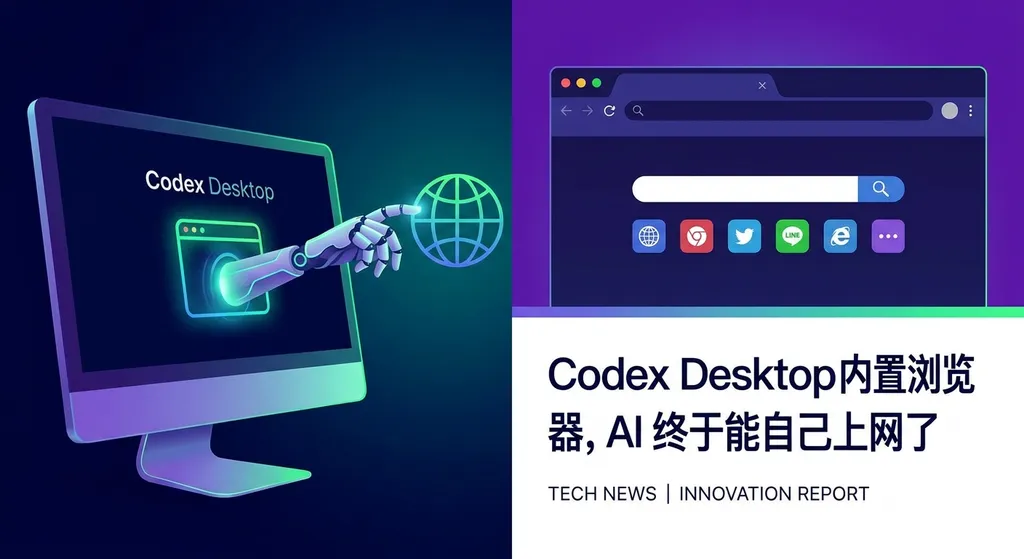
OpenAI has released a major update for Codex Desktop on macOS, introducing a built-in **Browser Use** plugin. With this, AI Agents can directly open web pages and operate the browser within the app, allowing users to give instructions through highlighting and annotations—marking the transition of AI coding assistants from simply “writing code” to actually “using the computer.”
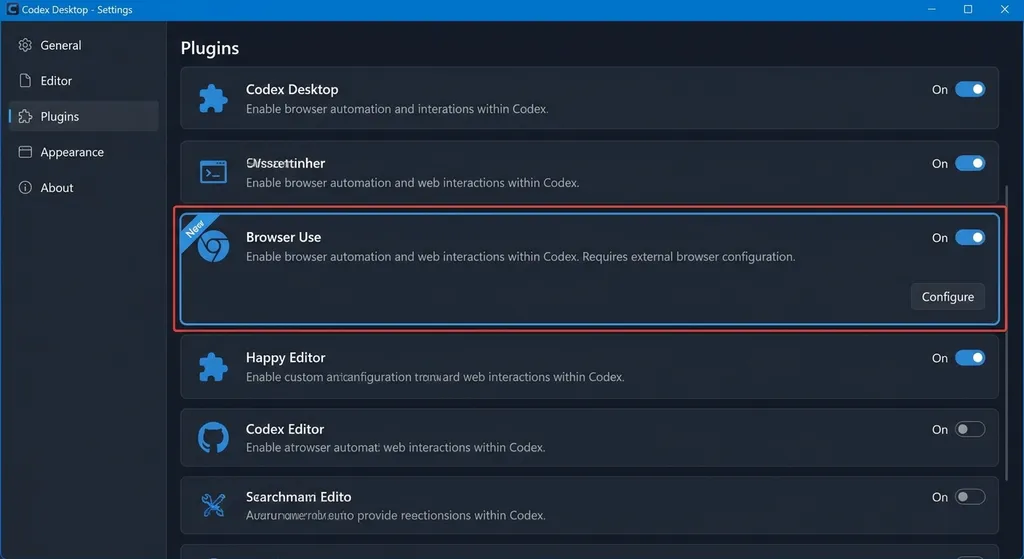
OpenAI hasn’t made any official announcement, but the change has already happened — the latest Mac version of Codex Desktop (26.422.20832) quietly includes a Browser Use plugin, which installs automatically after the update without any manual configuration. You can see the “Browser Use” option in the settings panel.
What does this mean? Your AI programming assistant is no longer a tool that can only read and write local files. It can now open web pages, see rendering results, and perform actions inside a browser. This isn’t just a small feature update — it’s a major step in Codex’s transformation from a “code editor plugin” to a “desktop AI Agent.”
What Exactly Is Updated
First, the facts. The version pushed on April 22 includes several core changes:
- Built-in browser: A browser environment embedded directly inside Codex Desktop — no need to switch to Chrome to check frontend results
- Automatic Browser Use plugin installation: Takes effect immediately after updating; visible and manageable in settings
- Page annotations: You can draw circles, mark areas, and write comments directly on rendered pages, then send these visual instructions to the AI Agent
- Integrated image generation: Access to gpt-image-1.5, allowing image material generation directly in your workflow
- 90+ new plugins: A large batch of third-party integrations from Atlassian to Slack
The most notable among these is Browser Use.
Why Browser Use Matters
Over the past year, competition among AI coding tools has centered on “code generation quality” — who autocompletes more accurately, better understands context, and can produce longer usable code in one go. Cursor, Windsurf, GitHub Copilot, and Codex itself have all focused on this.
But there’s one unsolved problem: what happens after the AI writes your code?
A typical frontend developer workflow looks like: write code → switch to browser → refresh page → check result → find issue → switch back → fix code → switch again. That cycle repeats dozens or hundreds of times daily. The AI can help write code, but it can’t “see” or “judge” the visual outcome.
You have to take a screenshot, paste it to the AI, describe what’s wrong, and wait for it to fix it. Or, more often — you skip the screenshot, fix it yourself, and the AI drops out of the loop.
Browser Use solves this disconnect.
Now Codex can see the rendered page directly — not from your description or screenshots, but by opening a browser and observing it itself. Even better, you can circle an element on the page and say “This button’s spacing is off,” and it receives both the visual data and the DOM structure, then goes back and adjusts the code.
Once that loop is closed, the efficiency boost is exponential.
From “Writing Code” to “Using a Computer”
Seen in a bigger context, OpenAI’s intent is clear: Codex Desktop wants to become a general-purpose desktop AI Agent, not just a coding tool.
The evidence extends beyond Browser Use. This update also brings Computer Use capabilities — the AI can directly operate Mac applications. Developers have already demonstrated Codex opening a browser automatically, generating posters, and even uploading them to Xiaohongshu. That’s not “coding assistance”; that’s “computer operation on your behalf.”
The addition of over 90 new plugins pushes in the same direction. When AI can read requirements from Jira, send messages on Slack, create PRs on GitHub, and check results in the browser — it’s no longer a link in the toolchain, but the orchestrator at the center.
OpenAI has also disclosed plans to open up full browser control, allowing Codex to automatically open websites, fill forms, and carry out complex web operations. The current Browser Use is just the first step.
Real-World Experience: Usable, But With Limits
Now for reality.
Community feedback so far shows Browser Use is mainly used in two scenarios:
Frontend debugging — the most direct use case. After writing a component, Codex renders it in the built-in browser. You mark on the page “This card’s shadow is too heavy,” “These elements aren’t aligned,” and Codex adjusts immediately. No window switching, no screenshot explanations — the feedback loop happens entirely within one app.
Game debugging — another mentioned use case. For web-based game development (Canvas, WebGL, Phaser, etc.), it used to be nearly impossible for AI to visually help — you couldn’t textually describe that “this sprite’s collision box is off by 3 pixels.” Now the AI can see the game screen, making such issues solvable.
But there are some limitations:
- Mac only for now. Windows and Linux users don’t yet have access, with no cross-platform timeline announced.
- Incomplete browser capabilities. Current functions are limited to viewing and annotations — full browser automation (auto form fill, auto click flows) is still under development.
- Performance overhead. A built-in browser increases resource usage — potentially problematic for memory-limited devices.
- Privacy and security. AI Agents operating a browser must be treated with caution — login states, cookies, and sensitive page data might be accessible.
What Competitors Are Doing
Browser Use isn’t a brand-new concept. In fact, the open-source project browser-use has been doing similar work — enabling AI Agents to control browsers for task execution. Anthropic’s Claude introduced Computer Use last year, allowing desktop and browser operations.
But OpenAI’s approach differs: it embeds the browser directly into a developer tool.
Claude’s Computer Use relies on screenshots to recognize UI content, then simulates mouse and keyboard actions. That’s flexible but limited in precision and speed — essentially “image-based control,” comparable to remote desktop operation.
Codex’s Browser Use, by contrast, is purpose-built for developer scenarios. The built-in browser gives the AI not only rendered output but also access to the DOM structure, CSS styles, and JavaScript console output. This structured information is vastly more valuable than pixel data. When you mark an element, the AI receives its HTML node and full style chain, not just coordinates.
Cursor and Windsurf currently lack similar built-in browser functions. Cursor’s strength lies in editor experience and multi-model support; Windsurf excels in codebase understanding and context management — but both remain in the “editor” category. Codex now embeds a browser and automation layer, stepping into an entirely different dimension.
Of course, Cursor and Windsurf will likely follow soon — integrating a browser isn’t a hard technical barrier. The real challenge lies in model capabilities: visual understanding and closing the loop between visual feedback and code modification. OpenAI has a head start here thanks to GPT-4o’s multimodal abilities.
What This Means for Developers
Practically speaking:
If you’re a frontend developer, this update deserves your attention. Browser Use addresses one of the biggest gaps in AI-assisted development — visual feedback. Previously you had to act as the AI’s “eyes”; now it can see for itself. That fundamentally changes how you collaborate with AI.
If you’re a backend developer, immediate impact is smaller. Browser Use currently benefits situations with visual output. But in the long term, when Codex’s browser control matures, it’ll help test APIs (via Swagger UI), look up documentation, and perform admin operations — all gradually unlocking.
If you’re an indie developer or small team, this might be a huge boon. Solo full-stack work is especially painful in frontend debugging — lots of time spent aligning styles and interactions. Now the AI can see and fix those visually, like having a frontend partner that understands design specs.
One big question arises: When AI Agents can operate browsers, connect multiple third-party services, and autonomously complete multi-step workflows — is the definition of “programming” itself changing?
You might no longer tell the AI, “Change this div’s margin-top to 16px,” but instead draw a line and say, “The spacing should look like this.” You might no longer write deployment scripts but simply say, “Deploy this page,” and it will handle Vercel or Netlify interfaces for you.
That’s not science fiction. Judging by this update, OpenAI is making it increasingly real.
How to Enable This Feature
Extremely simple:
- Ensure you’re using the Mac version of Codex Desktop
- Update to version 26.422.20832 or higher
- Open Settings and find the “Browser Use” option
- The plugin should already be auto-installed — if not, enable manually
No additional configuration needed; the plugin installs with the version. Community reports show most users see the option immediately after updating.
Final Thoughts
OpenAI didn’t make any big announcements about this release — not even a blog post — but this is likely Codex Desktop’s most significant update since launch.
The reason is simple: it redefines the boundaries of what an AI programming assistant can do.
Before, every coding AI tool — no matter how powerful — was “text in, text out.” You describe problems in text; it responds with code. Browser Use breaks that limitation, letting AI see what its code does and iterate based on visual feedback.
This is a concrete milestone for AI Agents in real-world development. Not a concept demo, not a benchmark paper — but a feature you can update and use today.
Whether it’s useful, stable, or truly boosts productivity — those answers depend on whether you’re willing to spend 10 minutes updating to find out.
References
- Codex Desktop (26.422.20832) Mac version update with built-in Browser Use plugin - Linux.do — the community thread where users first discovered and discussed the update
- OpenAI makes a major update to Codex Desktop, adding six key capabilities - Zhihu — a detailed overview of the major feature update in Codex Desktop