
Another way to remotely control the desktop with Codex Mobile

By modifying the configuration file, let Codex's Auth layer continue to use the ChatGPT account to retain Mobile permissions, while quietly switching the Model layer to a third-party API, allowing free accounts to remotely control the desktop version of Codex via mobile.
Codex Mobile: Another Way to Remotely Control the Desktop
In mid-May, ChatGPT officially added a new feature to Codex—remote control of desktop applications via mobile. It’s quite practical: developers don’t have to sit in front of their computers all the time; they can approve tasks and check progress directly from their phones.
The downside is that this feature is locked to ChatGPT account login, and all actual conversation requests are sent directly to OpenAI’s official API.
For developers who are used to using third-party APIs, this can be awkward—you either give up Mobile remote control or give up your own API setup.
Recently, someone on Linux.do figured out Codex’s internal architecture and came up with a compromise: keep the Auth layer authenticated with ChatGPT, retain the Mobile feature, but silently switch the Model layer to a third-party API.
Codex’s Two-Layer Architecture
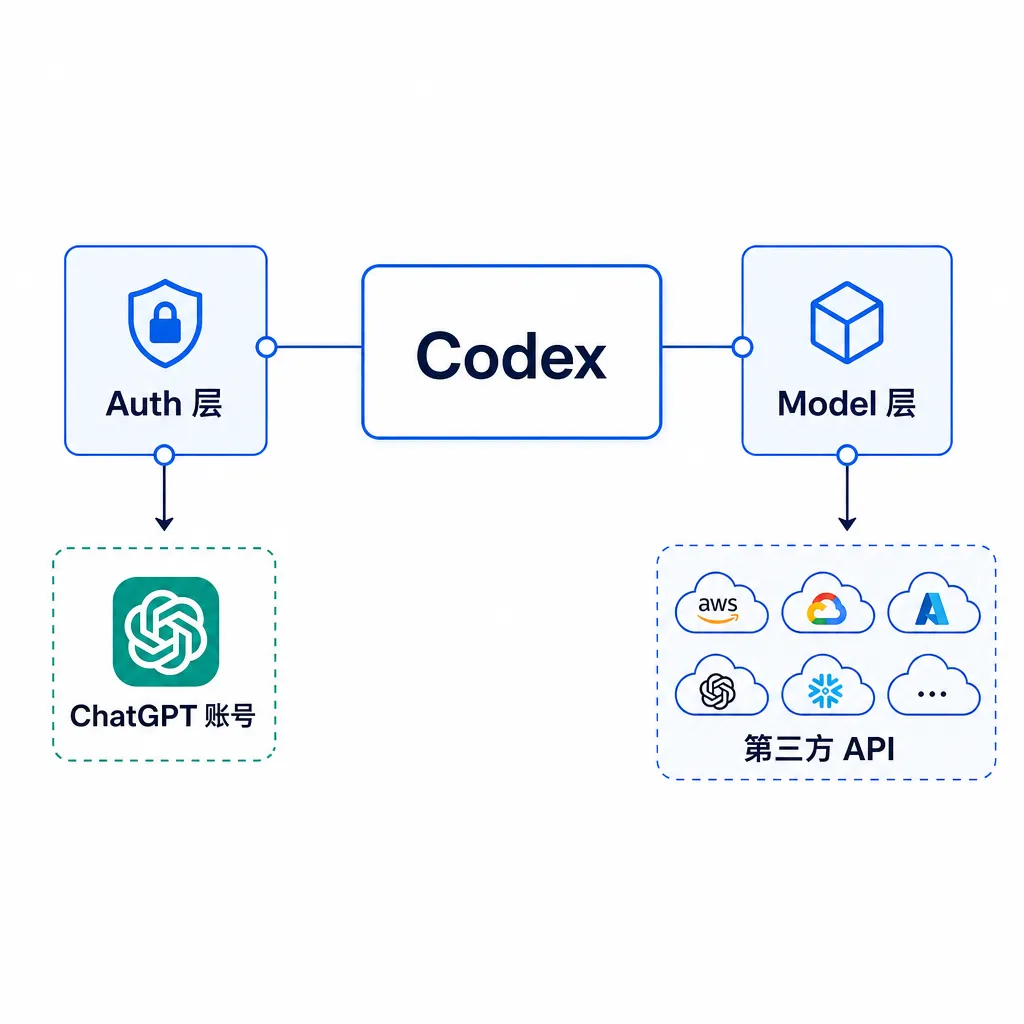
To understand this, you need to know how Codex works internally. It consists of two layers:
Auth layer: Handles login state, Plus membership verification, plugin permissions, Mobile unlocking, and quota queries. It communicates with OpenAI servers using your ChatGPT account.
Model layer: Handles actual dialogue requests—sending your input to a model and receiving its output. It uses the provider configured in config.toml, which could be OpenAI’s official API or any third-party service compatible with the OpenAI API format.
These layers are currently decoupled. Once the Auth layer verifies identity and permissions, the Model layer doesn’t care which account you use; it just sends requests to the API address in the configuration file. This gives us room to maneuver.
Why Go Through All This Trouble
Can’t we just log in with a ChatGPT account? For many developers, not really.
Cost: OpenAI’s official API pricing isn’t cheap for high-frequency use cases, especially GPT-4.
Third-party API aggregation platforms (like OpenAI Hub) often offer lower rates, and a single key can access multiple models.
Network: Direct connection to OpenAI’s official API from mainland China requires special network conditions and isn’t stable.
Third-party platforms usually provide domestic connection nodes, with lower latency and higher stability.
Quota management: Many teams use enterprise accounts with shared API keys and centralized quota control.
If every developer uses their own ChatGPT account to log into Codex, there’s no unified control over usage limits.
Still, the Mobile remote control function is genuinely useful—especially for long-running tasks, where being able to check progress or approve actions from your phone is far more convenient.
Hence this compromise: “Auth layer with official login, Model layer with third-party API.”
How to Set It Up
Preparation
You’ll need:
- A ChatGPT account—free tier works fine, since the Mobile feature isn’t tied to Plus.
- An account on a third-party platform that supports the OpenAI Responses API endpoint (
/v1/responses), which Codex uses (not the older/v1/chat/completions). - Two configuration files from Codex:
~/.codex/auth.jsonand~/.codex/config.toml.
Currently, not many third-party platforms support the Responses API. OpenAI Hub is one that fully adapts to it; older proxy platforms might not—check their documentation before using.
Step 1: Log in to Your ChatGPT Account
The order matters. Before editing any files, log into Codex normally with your ChatGPT account and stay logged in.
Why? Because Codex writes authentication tokens and state info into auth.json during login.
If you modify configs first, the Auth layer may fail to sync and break login or Mobile activation.
Once logged in, you should see your ChatGPT info in Codex desktop, and Mobile should be active. Now proceed to edit the files.
Step 2: Modify auth.json
Open ~/.codex/auth.json in any text editor. Find and edit the following fields:
{
  "auth_mode": "chatgpt",
  "OPENAI_API_KEY": null
}
Leave all other fields untouched.
Explanation:
auth_mode = "chatgpt"→ authentication continues through ChatGPT, preserving Mobile and plugin access.OPENAI_API_KEY = null→ disables the official API key; otherwise Codex might still use the official endpoint.
Save the file.
Step 3: Modify config.toml
Open ~/.codex/config.toml and append this:
[model_providers.custom]
name = "custom"
base_url = "https://your-api-endpoint.com"
wire_api = "responses"
experimental_bearer_token = "your-api-key-here"
This defines your custom Model provider.
name: arbitrary identifier, e.g."custom"or"openai-hub".base_url: third-party API address (e.g.https://api.openai-hub.net).wire_api: must be"responses".experimental_bearer_token: your API key.
Save the file, then inside Codex go to Settings → Model Providers → Default Provider and select your new provider.
Step 4: Restart Codex
Restart Codex to apply changes.
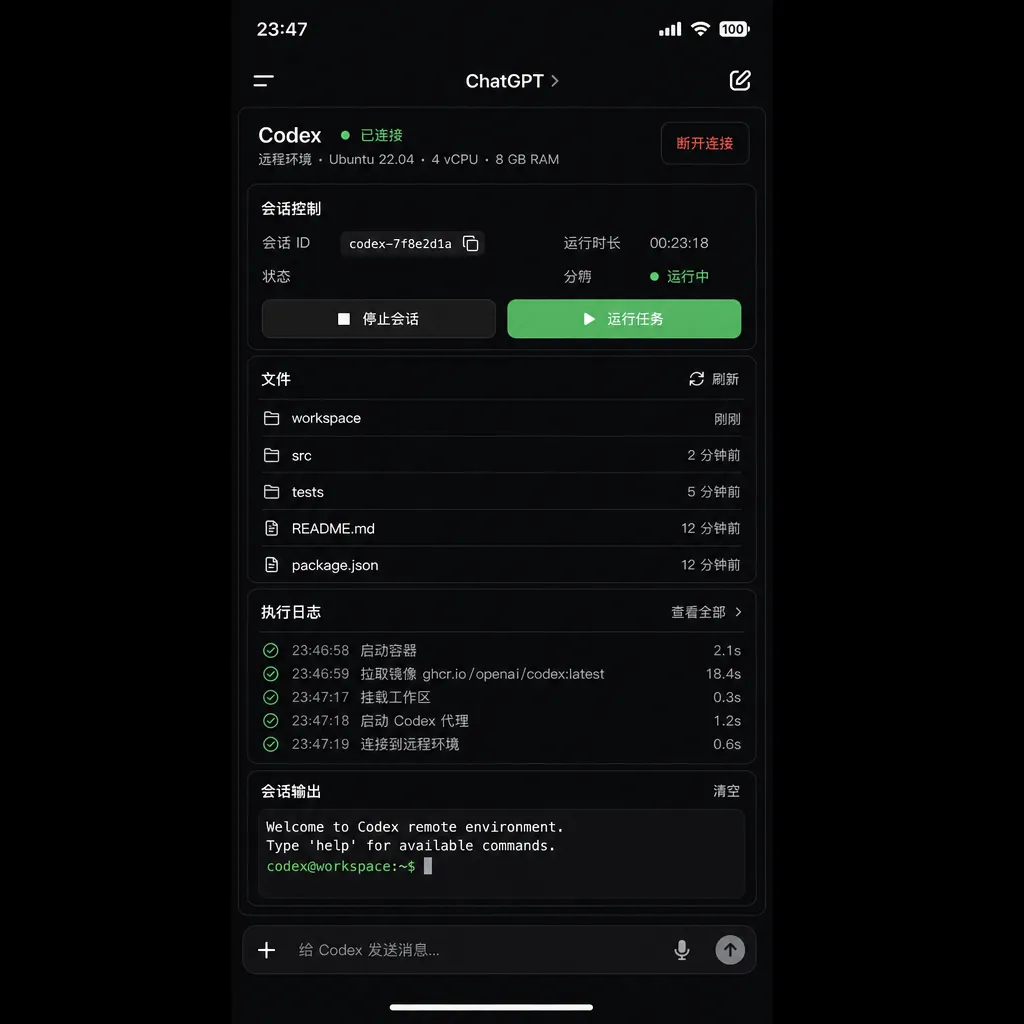
After rebooting, you should see:
- Codex still showing your ChatGPT account as logged in.
- Conversations are now sent to your configured third-party API.
- Mobile remote control in the ChatGPT app remains functional.
You now have “official Auth layer + third-party Model layer.”
Verifying It Works
How to confirm Codex is using the third-party API?
- Usage stats: Initiate dialogues in Codex, then check your third-party platform’s dashboard for matching API calls.
- Latency: Third-party platforms with domestic nodes should show noticeably lower response times.
- Model switching: If your platform supports multiple models (e.g. GPT, Claude, Gemini via OpenAI Hub), try switching within Codex. Successful model changes confirm the Model layer is using your provider.
Possible Issues
Mobile Feature Not Working
If Mobile control stops working, likely auth_mode in auth.json was set incorrectly or you didn’t log in first.
Fix: restore both files to default, log into ChatGPT again, verify Mobile works, then redo the configurations step by step.
Requests Still Hitting OpenAI Official API
If Codex still sends traffic to the official interface, check:
OPENAI_API_KEYinauth.jsonmust benull.base_urlinconfig.tomlis correct—no missing or extra slashes.- Default provider in Codex is your custom one.
Third-Party API Returning Errors
If Codex sends requests but gets errors:
- API key may be wrong or expired.
- Platform may not support the Responses API—verify it supports
/v1/responses. - Some models may not support Codex features like streaming or function calling. Try another model.
Limitations of This Setup
Though functional, there are several caveats:
- It depends on Codex’s current architecture. If OpenAI later tightly couples the layers, this workaround breaks.
- Plugin features may fail—plugins like Web Search or DALL·E rely directly on OpenAI services.
- Model behavior differences: even GPT-4 via third-party relay may vary slightly.
- This is not officially supported, so OpenAI’s tech support likely won’t help if issues arise.
Is It Worth Doing?
For individual developers using third-party APIs and needing Mobile control—it’s worth trying. Setup takes about 10 minutes, and maintenance is minimal.
For teams, especially those with centralized API key management or tighter cost control, it’s valuable too.
Organizations already using aggregation platforms like OpenAI Hub will find switching easy.
However, if you demand absolute stability or rely heavily on Codex plugins, stick with official login—this method is unofficial, and you’re on your own for troubleshooting.
Final Thoughts
This solution highlights developers’ need for flexibility. Codex serves a technical audience that values customization.
OpenAI’s decision to tie Mobile to official accounts may stem from security or business concerns, but for developers relying on third-party APIs, it’s inconvenient.
Fortunately, Codex’s architecture leaves room for innovation—the separation between Auth and Model layers lets users retain official features while using preferred APIs.
That flexibility embodies open-source spirit and developer culture.
Of course, how long this workaround remains usable depends on OpenAI’s future plans.
If they tighten integration, this may stop working; but for now, it’s a viable alternative.
If you use Codex with third-party APIs, give this a try—it’s quick and effective.
And if OpenAI later changes things, you can always revert to official login without any real loss.
References
- Using Third-Party API to Enable Codex Mobile Control of Desktop Codex App – Linux.do – Detailed steps and explanation
- Remotely Control Codex via Phone or Anywhere Using Codex.app Interface – Reddit – Community discussions and user experiences
- Let Codex Control Your Mobile Device to Accelerate App Development – Reddit – Exploration of mobile-side use cases