
GitHub Copilot Remote Control Goes Live: Your Phone Takes Over IDE Coding Sessions
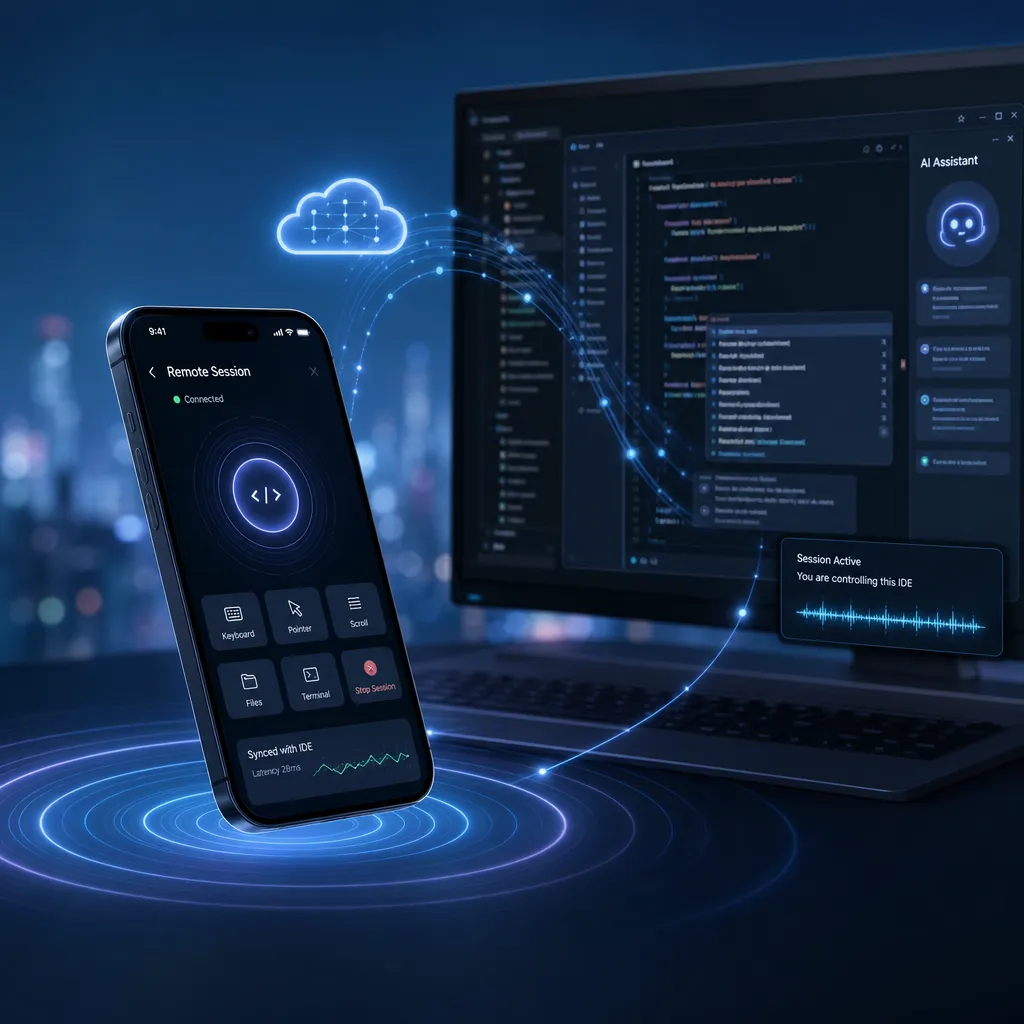
GitHub Copilot has officially launched remote control functionality, allowing developers to take over AI programming sessions in their local IDE via a mobile device or browser, enabling seamless cross-device collaboration. This marks a significant breakthrough in mobile capabilities for mainstream AI programming assistants, following tools like Cursor and Windsurf.
GitHub Copilot Remote Control is live: Take over IDE sessions from your phone
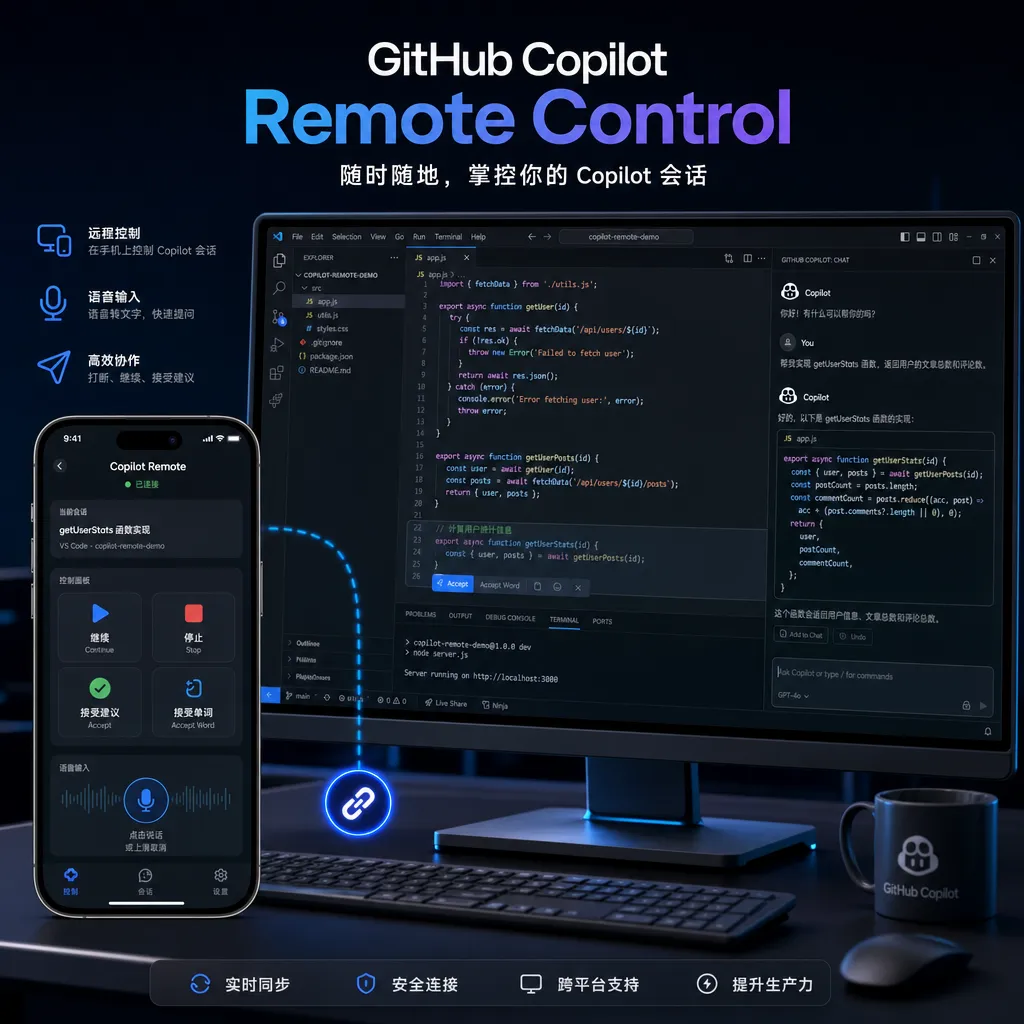
GitHub has just launched a feature for Copilot that sounds a bit like science fiction: Remote Control. In short, it allows you to take over the AI coding session you've started in VS Code or the command line directly from your phone or browser — continuing the conversation, approving permissions, and even editing coding plans.
The feature is now officially GA (Generally Available) on github.com and GitHub Mobile, supporting both iOS and Android. For developers who want to make progress on projects while commuting or between meetings, this is a handy productivity tool.
What problem does it solve
Traditional AI coding assistants are tied to your local IDE. You can chat with Copilot in VS Code all afternoon, generating code and plans, but once you leave your computer, the session ends. Want to continue on your phone? Either start a new one (and lose context) or wait until you’re back at your desk.
GitHub’s remote control feature decouples the session state from the local device and moves it to the cloud. By sharing a link or QR code, you can join an ongoing session from any device. All local actions — editing plans, switching modes, approving file changes — can be done remotely.
This design is similar to Anthropic’s Claude Code (now Claude Desktop), but GitHub’s advantage is that it’s built directly into Copilot CLI and github.com, with no extra client installation required.
How to use it
Start from VS Code or CLI
In VS Code, update to the latest GitHub Copilot extension. After starting Copilot Chat, click the Remote Control button at the top right to generate a shareable link and QR code.
If you’re using Copilot CLI, just add the --remote or /remote parameter to your command:
gh copilot --remote "Refactor this function for me"
The CLI will output a link like this:
https://github.com/copilot/sessions/abc123def456
Take over from phone or browser
Open GitHub Mobile, scan the QR code or paste the link, and you’ll see the full session history. You can:
- View real-time output: Commands executed by Copilot locally, generated code, and file changes all sync live
- Continue the conversation: Input new instructions from your phone; Copilot will execute them in the local environment
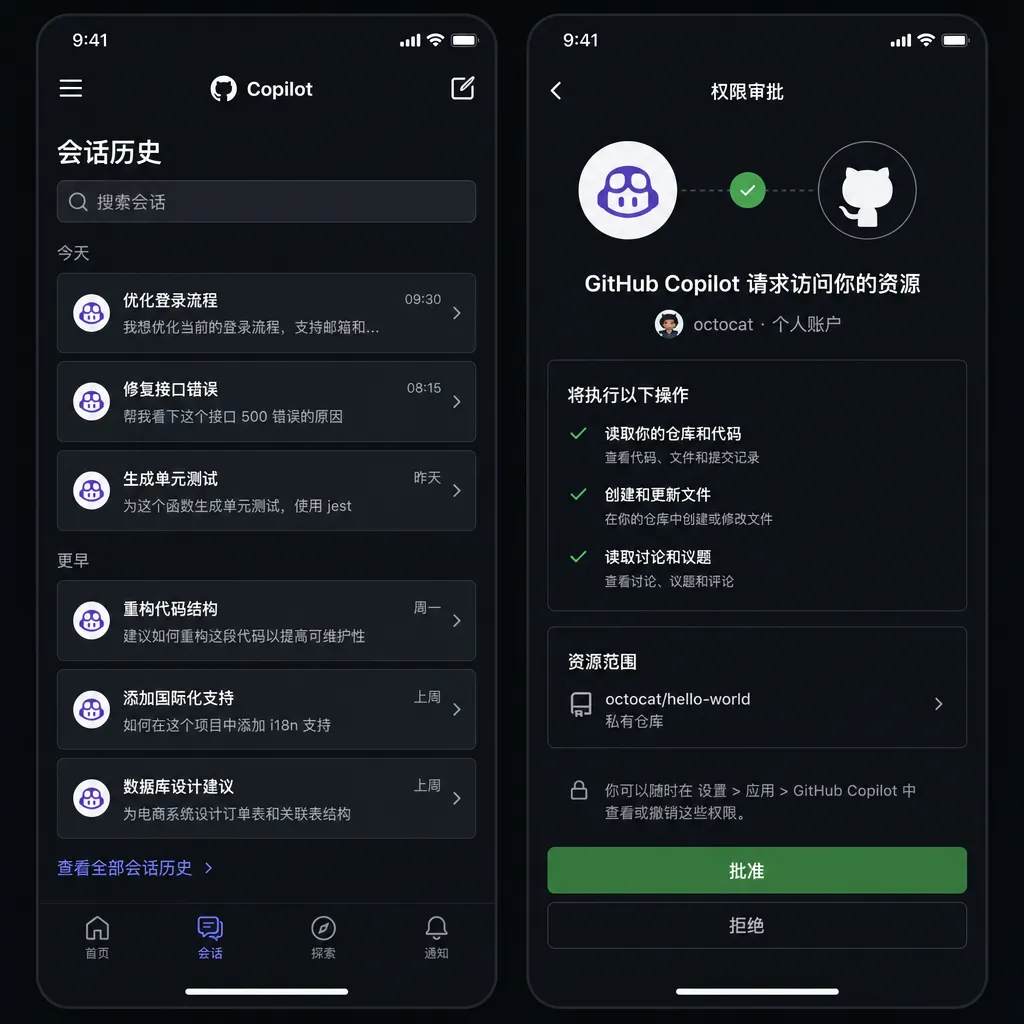
- Approve permissions: When Copilot needs to modify files or perform sensitive actions, a request pops up for you to approve or deny remotely
- Switch modes: For example, switch from “code generation” to “debugging”
All actions are synchronized in both directions. Changes made on your phone update automatically in VS Code when you return.
Technical implementation: Cloud-based session state
GitHub hasn’t disclosed many technical details, but from what’s visible, the key is migrating session state from the local IDE to the cloud.
Typically, Copilot workflows look like this:
- User enters a command in VS Code
- Copilot extension sends the command and context (current file, project structure) to GitHub’s API
- The API returns generated code or execution plan
- The extension applies changes locally
Session state (conversation history, context, execution plan) resides in local memory and is lost when the IDE closes.
Remote control adds a Session Service. Once remote control starts, the session state is persisted on GitHub’s servers. Each session has a unique ID, allowing connections from any device.
Two core technical challenges are permission control and real-time synchronization:
- Permission control: Remote devices can’t directly operate on the local file system. Every file modification requires confirmation from the local IDE. GitHub uses an “approval queue” mechanism — remote actions go into a queue, the local IDE polls it, and then executes.
- Real-time sync: Changes in session state (new messages, file edits, execution results) must sync across devices. GitHub likely uses WebSocket or similar long-lived connections to keep latency under one second.
This architecture resembles Google Docs real-time collaboration, but is more complex because it involves local file systems and command execution.
How it compares to competitors
Remote control isn’t a new concept. Tools like Cursor, Windsurf, and Continue all have experimented with similar features, though implementations differ.
Cursor’s Remote Sessions
Cursor launched Remote Sessions late last year, allowing multiple developers to share one AI session. However, it targets team collaboration, not cross-device use. Also, sessions are tied to the Cursor desktop client – you can’t join from a browser or phone.
Anthropic’s Claude Desktop
Claude Desktop (formerly Claude Code) allows desktop sessions to be taken over from the web version. But it’s a standalone app, not an IDE extension. You need to code inside Claude Desktop and then continue in the browser – a noticeably different experience from GitHub’s “start in VS Code, continue on mobile” workflow.
GitHub Copilot’s advantages
GitHub’s major advantage is ecosystem integration. Copilot is already the most-used AI assistant in VS Code, JetBrains, and Neovim. Remote control is built into these tools — no extra clients needed.
Also, GitHub Mobile is already a daily utility for many developers (reviewing PRs, replying to issues), so adding remote control there has minimal learning curve.
Another advantage: CLI support. Many developers use AI assistants in the terminal (e.g., generating commit messages, explaining error logs). GitHub Copilot CLI’s remote control enables true cross-device usage for these workflows too.
Practical use cases
Scenario 1: Refactor on the way home
At work, you use VS Code to start a large refactoring task. Copilot generates plans modifying over 20 files. On your commute, you open GitHub Mobile, take over the session, and approve file modifications one by one. By the time you get home, half the task is done.
Scenario 2: Handle urgent bug during a meeting
During a meeting, you get an alert for a production bug. You open GitHub Mobile and start a new Copilot CLI session to analyze logs and suggest fixes. Copilot runs commands, reads logs, and generates patches on your dev machine. You approve changes on your phone and deploy to production — all within 5 minutes.
Scenario 3: Cross-timezone collaboration
You’re in the U.S., your teammate’s in Europe. You start a Copilot session to generate some code but aren’t sure if it meets team conventions. You share the session link, your teammate takes over, revises the plan, and regenerates code. By the time you wake up, everything’s ready.
These scenarios are hard to achieve with traditional AI coding tools because session states are locked to local devices.
Security and privacy
GitHub highlights several key points:
- One-time session links: Each remote control link is single-use and expires after connection. You must generate a new link to reconnect.
- End-to-end encryption: Session data is encrypted during transmission; GitHub only stores encrypted states.
- Local files are not uploaded: File contents visible to remote devices are pushed by the IDE, not read directly by GitHub. You control which files are exposed.
- Permission approval: Every file change or command execution requires approval from the local IDE. Remote clients cannot bypass this.
Potential risks still exist:
- Link leakage: If you accidentally share a session link publicly (e.g., on Slack or Twitter), anyone can access it. Although links are single-use, they remain valid until used.
- Man-in-the-middle attacks: Using remote control on insecure networks (e.g., public Wi-Fi) could expose theoretical risk. GitHub employs HTTPS and encryption but absolute security is never guaranteed.
GitHub recommends using trusted devices and regularly verifying active sessions (found under github.com/settings/copilot/sessions).
Impact on developer workflows
Remote control fundamentally decouples devices from work state. Traditionally, development is device-bound: your code, IDE configuration, and AI assistant session all live locally. Once you leave that device, you lose all context.
Cloud IDEs like GitHub Codespaces or Gitpod try to solve that by moving the whole dev environment to the cloud. But that demands strong connectivity and doesn’t suit cases like hardware debugging or internal network access.
GitHub’s remote control offers a middle ground: your environment stays local, yet the session state becomes cross-device accessible — lightweight and flexible.
It does introduce new complexity: developers must manage multiple active sessions, remembering which are live or closed. If simultaneous edits occur from multiple devices, conflicts might arise (e.g., two devices modify the same file). GitHub currently uses a simple “last-writer wins” approach without conflict resolution.
Future possibilities
Remote control is just a starting point. GitHub may expand in several directions:
1. Multi-user collaborative sessions
Currently it’s one-to-one — one local IDE and one remote device. Multi-user sessions, akin to Google Docs collaboration, could enable pair programming, code review, or even live technical interviews.
2. Session history and replay
Sessions are temporary and disappear when closed. GitHub could support persistent session storage and replay — similar to asciinema — beneficial for learning, debugging, and retrospectives.
3. Cross-project sessions
Sessions are now bound to a single project. Future versions might let you move across projects — start in Project A, continue in Project B — with Copilot automatically adjusting context.
4. Voice and video integration
Currently, only text chat is supported. Adding voice commands (like ChatGPT’s voice mode) or video calls (like Zoom screen sharing) could further enhance remote collaboration.
Market impact on AI coding tools
GitHub Copilot is the largest AI coding assistant by market share (over 40% of developers use it, per Stack Overflow’s 2024 survey). Remote control strengthens that lead.
Competitors like Cursor, Windsurf, and Codeium may feel pressure to add similar functionality or risk lagging behind in cross-device collaboration. GitHub’s ecosystem integration makes it difficult for rivals to catch up quickly.
Another ripple effect: the rise of mobile development tools. Mobile code editors (e.g., Koder, Textastic) have remained niche due to screen size and typing inefficiency, but with AI assistants, “coding on your phone” becomes viable — you just chat, approve changes, and let AI do the typing. Remote control accelerates that shift.
Summary
GitHub Copilot’s Remote Control feature marks an important step toward cross-device AI coding collaboration. It solves a real pain point: developers no longer have to be tethered to a single machine and can continue work anywhere.
Technically, GitHub has chosen a lightweight approach — moving session state to the cloud while keeping the environment local — balancing flexibility and security.
Strategically, it strengthens the Copilot ecosystem. By integrating remote control into VS Code, CLI, and GitHub Mobile, GitHub makes Copilot truly omnipresent.
For developers, it’s worth trying. If you often switch devices or handle tasks while commuting, Remote Control can be a practical addition. Just remember security best practices — don’t share links publicly and check your active sessions.
Finally, if you want to integrate similar AI capabilities into your projects, try OpenAI Hub. It supports major models like GPT, Claude, Gemini, and DeepSeek, is OpenAI-compatible, and enables direct use within China — one key for all models.
References
- Take your local GitHub sessions anywhere - GitHub Blog – Official GitHub blog post announcing the Remote Control feature
- Remote control for GitHub Copilot CLI sessions - GitHub Docs – GitHub documentation explaining the technology behind Remote Control
- Control GitHub Copilot CLI sessions from other devices - GitHub Docs – GitHub’s how-to guide for using Remote Control