
Terminal Flicker Terminator: Claude Code NO_FLICKER Mode Launched

Claude Code introduces the **NO_FLICKER** rendering mode, which completely eliminates flickering, screen jumping, and memory spikes by taking over the terminal's alternate screen buffer. It also unexpectedly brings full mouse interaction support, making the terminal experience closer to that of a GUI.
Terminal Flicker Terminator: Claude Code NO_FLICKER Mode Goes Live
Boris Cherny, the creator of Claude Code, recently announced a new rendering mode: NO_FLICKER. With just one environment variable, it reportedly fixes all the long‑standing issues: terminal flickering, content jumping, and runaway memory growth. As a bonus, there’s an unexpected Easter egg — mouse clicks now work inside the terminal.
This isn’t a small patch. It’s a complete overhaul of the rendering pipeline.
Everyone Who’s Used It Knows How Annoying the Old Problems Were
If you use Claude Code frequently, chances are you’ve experienced the following:
After more than a dozen conversation rounds, the screen starts visibly flickering. In VS Code’s built‑in terminal, the cursor occasionally jumps back to the top, forcing you to scroll manually to find where you left off. Each time a tool call refreshes output, the entire interface shakes for a moment. A more hidden problem is memory — the longer the conversation, the higher the usage, especially noticeable when running multi‑Agent collaborative tasks for long periods.
These aren’t edge cases. Complaints have been flooding the community ever since Claude Code launched. The root cause lies in the traditional rendering approach: content is appended to the terminal’s standard output stream, scrolling relies on the terminal’s own scrollback buffer, and every update sends a flood of ANSI escape codes. In terminal emulators where throughput is already a bottleneck — such as VS Code’s built‑in terminal, tmux, and iTerm2 — flickering becomes inevitable.
Put simply, the old renderer was fighting against the terminal itself — and losing.
What the New Renderer Does
Enable it with one command:
CLAUDE_CODE_NO_FLICKER=1 claude
To make it permanent, add it to your shell config:
# ~/.zshrc or ~/.bashrc
export CLAUDE_CODE_NO_FLICKER=1
Requires Claude Code v2.1.89 or higher. Currently in research preview phase.
Technically, NO_FLICKER can be summarized in one sentence: it switches from “appending to the terminal output stream” to “taking over the terminal’s alternate screen buffer.”
If you’ve used vim, htop, or less, you know this mode — the program enters a dedicated fullscreen interface, and the terminal returns to normal after exit. In this mode, the viewport is entirely app‑managed: only visible content is rendered, and only actual changes are sent.
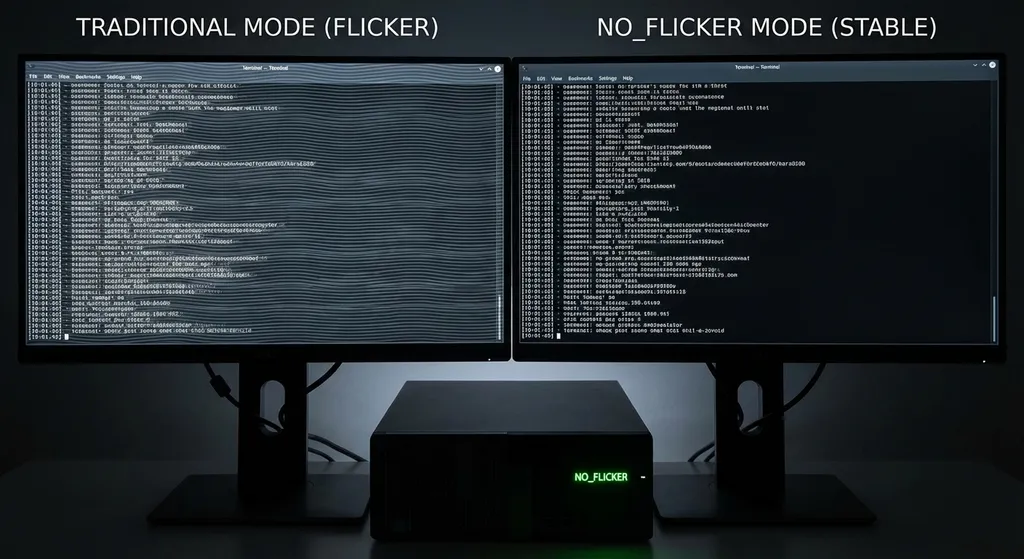
Boris explained in his tweets: the terminal rendering instruction set is fundamentally limited to ANSI escape codes — far less capable than web or mobile renderers. The old renderer had to send large volumes of data on every update, while the new one virtualizes the entire viewport, effectively implementing a minimal “virtual DOM” inside the terminal — it diffs frames and only sends the changed segments.
This concept isn’t new; vim did something similar decades ago. But applying it to an AI coding assistant’s interactive interface yields instant benefits:
- The input box stays fixed at the bottom of the screen
- No more flickering or jumping, even in long sessions
- Memory usage remains constant regardless of conversation length
- CPU usage is more stable, avoiding periodic render spikes
For heavy users who keep Claude Code running for hours with hundreds of turns, the fact that memory no longer grows indefinitely is already worth it.
Mouse Support: The Real Surprise
Eliminating flicker prompted people to say, “about time.” But mouse support — that no one saw coming.
Using a mouse in the terminal might sound odd. But picture this: you’re writing a long prompt in Claude Code’s input box, realize midway that you need to edit an earlier word. What did you do before? Hold the left arrow, move one character at a time, or jump to the start with Ctrl+A and move right from there.
Now you just click — and you’re there.
That alone makes upgrading worthwhile.
But NO_FLICKER mode’s mouse capabilities go far beyond cursor positioning:
Clickable Interactive Elements
After Claude Code runs a tool call, the result is folded by default. Previously, expanding it required a keyboard shortcut. Now you can simply click the folded area to expand or collapse it — just like clicking an accordion on a webpage.
File paths in tool outputs open directly in your default editor on click. http:// and https:// links open right in your browser. These interactions are standard in GUI apps but have always been missing in terminals.
Selection and Copy
Select text by dragging the mouse; when you release, it’s automatically copied to the clipboard. This can be disabled in settings but is on by default. The mouse wheel scrolls smoothly through chat history. Double‑click to select a word, triple‑click for a line — standard editor gestures, now available in the terminal.
A finer detail: in terminals supporting the Kitty keyboard protocol (kitty, WezTerm, Ghostty, iTerm2), pressing Ctrl+C during selection performs a copy instead of sending a SIGINT. This polished detail shows the team truly thought through terminal‑specific interaction logic instead of forcing GUI behaviors into it.
What’s the Cost
There’s no free lunch. Using the alternate screen buffer means some built‑in terminal capabilities are affected.
Most obvious: Cmd+F (or Ctrl+F) search may no longer work directly, since terminal search operates on the scrollback buffer, and NO_FLICKER renders to the alternate buffer instead. The workaround is Claude Code’s internal search shortcut (Ctrl+O then /).
Also, since this is a full‑screen takeover mode, exiting Claude Code restores the terminal to its prior state — conversation content won’t remain in scrollback. If you’re used to scrolling up after exit to review output, you’ll need to adapt.
A few minor bugs remain — for instance, occasional inaccuracy when clicking in the input box to move the cursor. Boris admits this is still a research preview, with behavior subject to change based on feedback.
Community feedback so far is overwhelmingly positive. For most developers who’ve tried it, the combined smoothness of no flicker and mouse interaction more than offsets these small trade‑offs.
Why This Matters
On the surface, this is just a rendering optimization. But it actually signals serious commitment to improving terminal UX for AI coding tools.
Over the past year, competition among AI coding assistants has revolved around model capability — accuracy of code generation, context window length, language support. As models converge in ability, user experience becomes a key differentiator. For a terminal‑native tool like Claude Code, rendering quality is the foundation of that experience.
No matter how powerful the underlying model is, a flickering interface is irritating to use. A stable, fluid, mouse‑friendly terminal makes developers more likely to integrate it into their daily workflow rather than treat it as a novelty.
The technical approach behind NO_FLICKER deserves attention, too. Solving terminal rendering performance via alternate screen buffer + viewport virtualization isn’t new — but applying it at this level of polish in an AI interaction setting is a first.
For developers who call Claude models via API, this update doesn’t directly impact API usage. But if you also use Claude Code, upgrading to v2.1.89+ and enabling NO_FLICKER is absolutely worth a try. As a side note, if your projects call models like Claude, GPT, and Gemini simultaneously, OpenAI Hub supports using a unified OpenAI‑compatible format to call them all — with direct domestic access and no need to manage multiple API keys:
from openai import OpenAI

client = OpenAI(
    api_key="your-openai-hub-key",
    base_url="https://api.openai-hub.net/v1"
)

# Call Claude using the OpenAI-compatible format
response = client.chat.completions.create(
    model="claude-sonnet-4-20250514",
    messages=[
        {"role": "user", "content": "Refactor this Python code to improve readability."}
    ],
    max_tokens=4096
)

print(response.choices[0].message.content)
// Node.js example
import OpenAI from 'openai';

const client = new OpenAI({
  apiKey: 'your-openai-hub-key',
  baseURL: 'https://api.openai-hub.net/v1',
});

const response = await client.chat.completions.create({
  model: 'claude-sonnet-4-20250514',
  messages: [
    { role: 'user', content: 'Analyze this code for performance bottlenecks and suggest optimizations.' }
  ],
});

console.log(response.choices[0].message.content);
How to Try It
Simple three‑step setup:
- Ensure Claude Code version ≥ v2.1.89 (
claude --versionto check) - Run in terminal:
CLAUDE_CODE_NO_FLICKER=1 claude - If you like it, add
export CLAUDE_CODE_NO_FLICKER=1to~/.zshrcor~/.bashrc
You can also add it to settings.json for Claude Code — same effect.
If you encounter issues, the Anthropic team is actively collecting feedback. Since this is a research preview, now is the best time for your bug reports and suggestions to be addressed.
Final Thoughts
Improving terminal UX is often thankless. Users rarely cheer because “it no longer flickers” — they only complain when it does. Yet it’s precisely these fundamental refinements that determine whether a tool goes from usable to delightful, from helpful to indispensable.
NO_FLICKER mode marks a major leap forward in Claude Code’s terminal experience. No more flicker, functional mouse interaction, stable memory usage — each improvement alone may seem small, but together they transform what it feels like to code in the terminal.
Now we’re just waiting for the official release.
References
- You can now click in the terminal! Claude Code launches the new NO_FLICKER rendering mode — CSDN Blog, detailed technical explanation and Boris Cherny’s tweets
- No more terminal flicker! Claude Code debuts NO_FLICKER mode — AIbase report covering key improvements and mouse support
- Farewell to flicker! Claude Code releases NO_FLICKER mode — AIbase article with setup instructions and notes
- New Claude Code mode: NO_FLICKER ends flicker — Sohu Tech overview of the technical design
- Claude Code NO_FLICKER mode announced — Sohu Tech summary of community feedback and user experience