
Microsoft has put an AI agent into the taskbar.
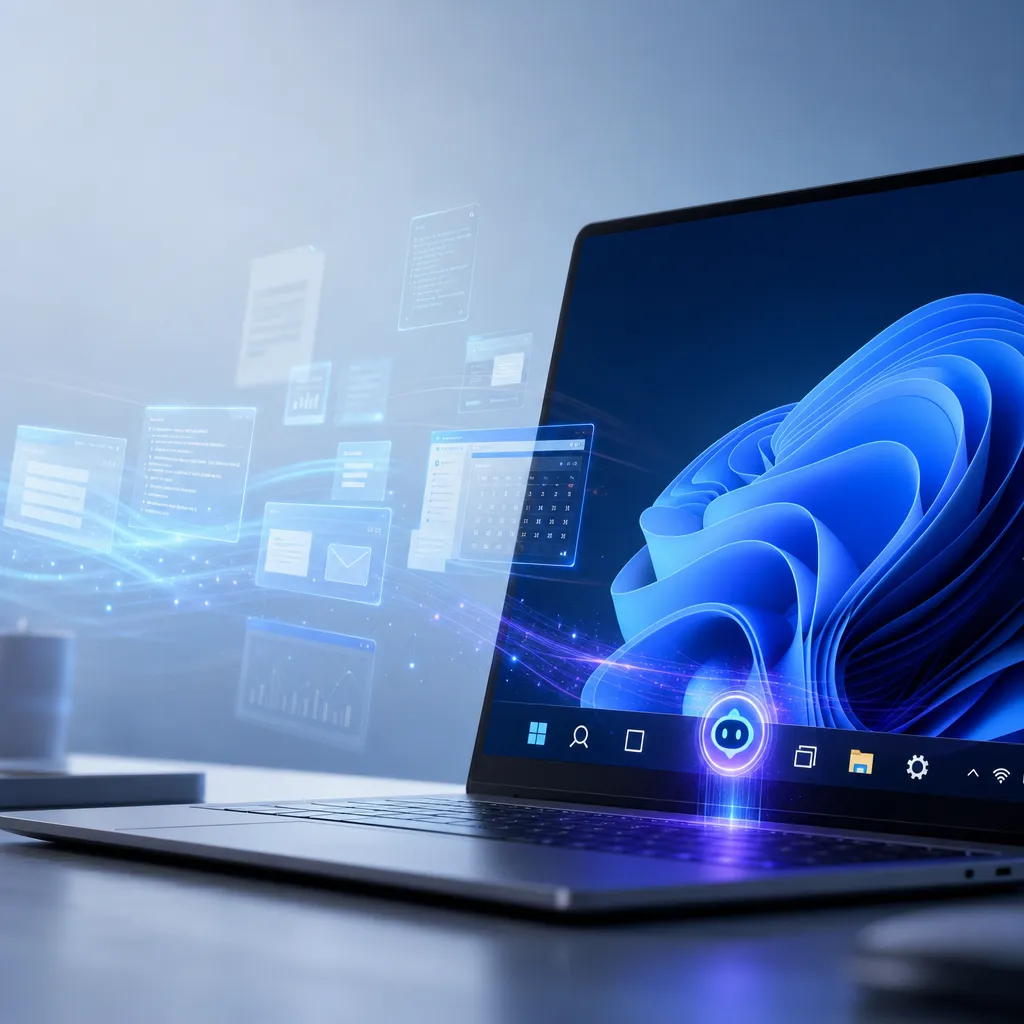
Microsoft is transforming the Windows 11 taskbar into an entry point for AI agents. Enterprise users can directly access dedicated agents to check policies and follow projects, and with Click to Do, images and tables can be converted to Excel with a single click.
Microsoft Puts AI Agents into the Taskbar
Microsoft has finally made changes to the Windows 11 taskbar. According to a 14-page internal document, Microsoft plans to embed Ask Copilot directly into the taskbar in 2026 and connect it to enterprise-specific AI agents. At the same time, the Click to Do feature will gain table extraction capabilities from images, allowing screenshots of tables to be converted directly into editable Excel files.
This is not just another marketing slogan of “AI-powered.” This time, Microsoft’s thinking is to pull AI agents from the application layer down to the system layer, letting AI assistants run in the background like resident programs. Users can invoke them from the taskbar at any time, instead of having to open a browser or a dedicated Copilot app each time.
Taskbar Ask Copilot: A Quick Entry Point for Enterprise Scenarios
The core logic of taskbar Ask Copilot is to reduce context switching. In traditional enterprise collaboration scenarios, employees seeking company policies, tracking project progress, or verifying compliance requirements often need to jump between multiple applications—opening a browser to search internal documents, switching to Teams to view messages, then opening SharePoint to find files. Microsoft’s plan is to consolidate these actions into a unified entry point.
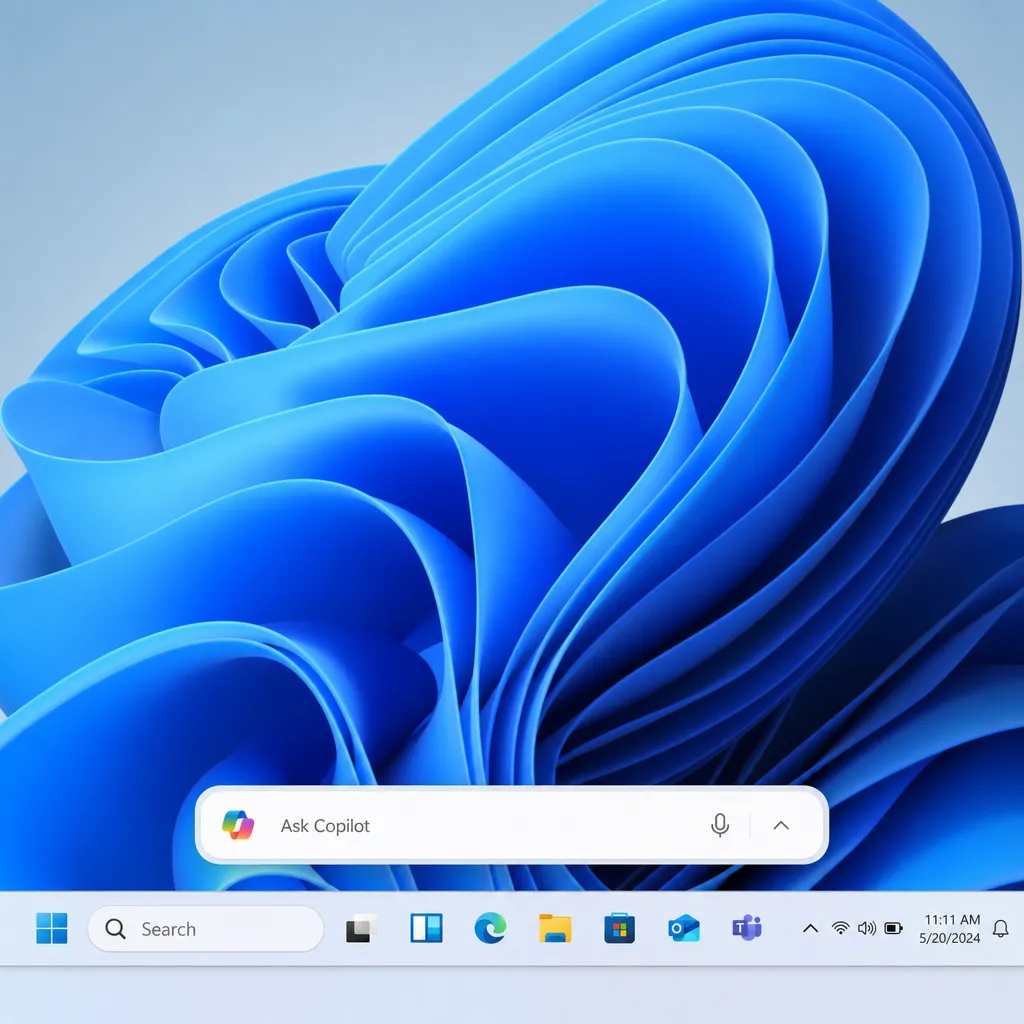
Clicking the Copilot icon in the taskbar will open an upgraded Composer interface. This interface connects directly to Microsoft 365 Copilot and enterprise-specific AI agents running in the background. “Enterprise-specific AI agents” refers to internally customized AI assistants, such as compliance agents, project management agents, HR policy agents, and so on. These agents can access the company’s internal knowledge base, document systems, and business data, providing answers based not on general internet information, but on customized responses tailored to the company’s actual situation.
Microsoft points out in the document that this feature is mainly aimed at compliance officers and managers. Their typical needs are to quickly check policy updates, pending issues, and deadlines. Traditional enterprise search tools are either too slow or deliver overly cluttered results, whereas Ask Copilot, via AI agents, can directly provide structured answers, such as “There are 3 compliance policy updates this quarter, 2 of which require your approval” or “There are 5 tasks in your projects that are about to reach their deadline.”
More critically, users can summon specific AI agents by typing the @ symbol. For example, typing @Compliance Assistant will directly call a compliance-related agent, rather than letting the general Copilot guess what you want to ask. This design borrows from the mention mechanisms of collaboration tools like Slack and Teams, reducing the learning curve.
Technical Implementation of Taskbar AI Agents
Microsoft’s technical architecture this time has two points worth noting: the MCP protocol and sandbox environments.
MCP (Model Context Protocol) is Microsoft’s protocol for connecting AI agents to the system. Its purpose is to allow third-party AI agents to safely integrate into Windows, while ensuring data isolation and access control. Enterprises can develop their own AI agents, register them into the system via MCP protocol, and then employees can invoke them directly from the taskbar.
The sandbox environment serves as a security safeguard. All AI agents run in isolated sandboxes, unable to directly access system files or users’ sensitive data. An agent can only obtain information via explicitly authorized APIs, such as reading SharePoint documents or querying Teams messages. This design prevents AI agents from going rogue or being maliciously exploited.
From a product perspective, Microsoft is turning Windows 11 into an “agent operating system.” Users can manage AI agents just like normal applications: view their running status in the taskbar, pause or terminate their tasks. For example, if you let an agent organize last week’s meeting minutes, it will run in the background, the taskbar icon will display progress, and when done, it will send a notification.
The advantage of this design is to turn AI assistants from “conversation tools” into “persistent services.” Users don’t need to repeatedly describe their needs; the agent can keep track of task status and proactively push updates.
Click to Do Table Extraction: Tackling Data Silos
Click to Do is a visual recognition feature launched on Windows 11 AI+ PCs. Its core capability is to recognize text, graphics, and tables on the screen via local vision models, and then provide quick actions.
The new table extraction feature addresses a very practical pain point: business data locked in static charts that cannot be copied. For example, you receive a PDF report containing a sales table, but the table is in image format and cannot be directly copied into Excel. Traditionally, you would either manually re-enter the data or use OCR tools and then manually adjust the format.
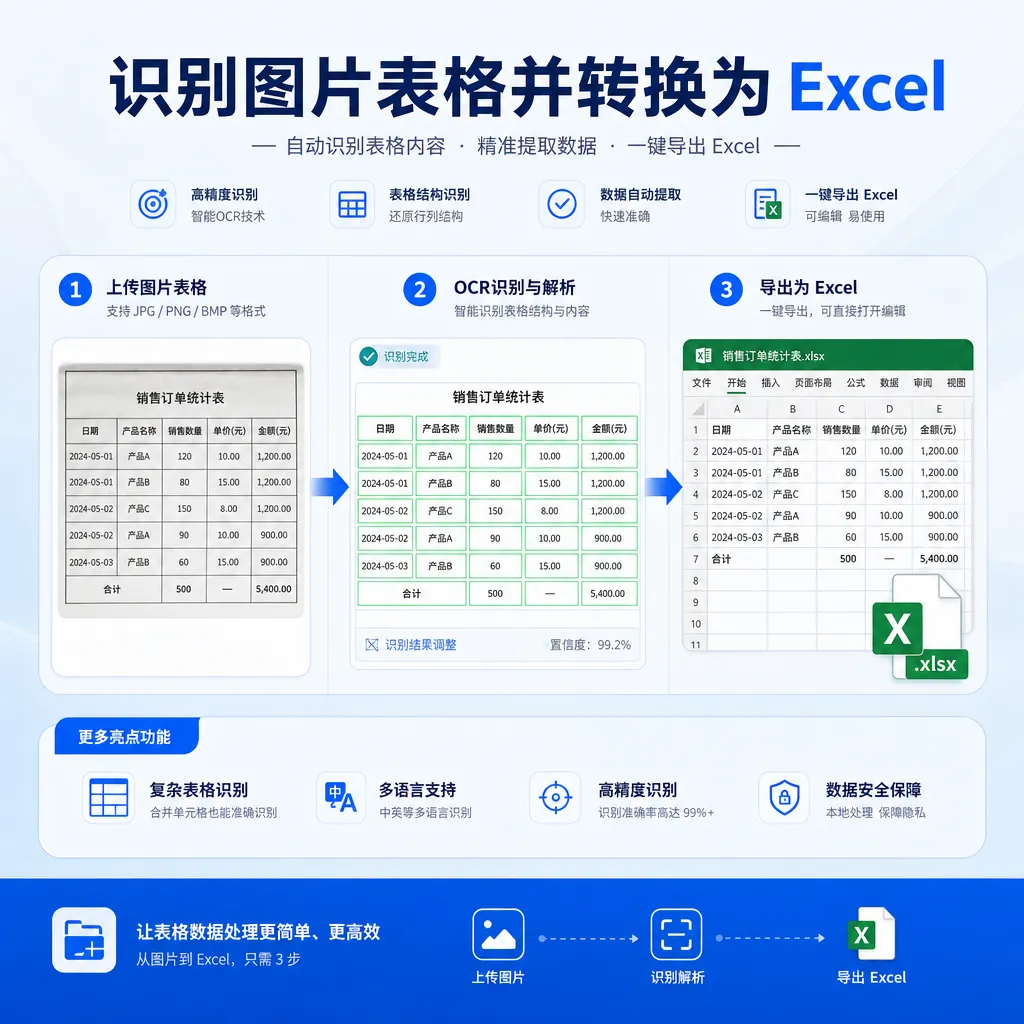
Click to Do’s approach is to directly detect table boundaries and convert visual data into editable Excel tables. Users simply right-click on an image or PDF, choose “Extract Table,” and the system will automatically recognize the table structure and generate an Excel file.
The technical challenge here lies in recognizing table structures. Different tables have different layouts—some are simple row-and-column structures, some have merged cells, and some have multi-level headers. Microsoft’s vision model must accurately recognize these structures and preserve the original formatting, such as font, color, and alignment.
More importantly, this feature runs entirely on-device and does not require uploading data to the cloud. For enterprise users, this means sensitive business data never leaves the local device, complying with data regulations. Microsoft’s document emphasizes this point, stating “On-device processing can reduce manual re-entry and formatting errors after copy-paste.”
In practical terms, this feature is highly valuable for roles in finance, data analysis, and market research. These positions often need to extract data from various sources—client screenshots, competitor public reports, internal PDF documents, etc. If every instance required manual entry, efficiency would be low and errors would be common. Click to Do’s table extraction can automate this process and save significant time.
Enterprise First, Consumer Later
Microsoft makes it clear in the document that these features will first be offered to enterprise Frontier preview customers. Frontier is Microsoft’s early access program for enterprises, whose participants are often large organizations or those with strong demand for new technology.
This strategy aligns with Microsoft’s product logic. Enterprise users have clearer needs for AI features and are more willing to pay for productivity tools. Moreover, in enterprise scenarios, the value of AI features can be more easily quantified—for example, how much manual work was reduced, how much efficiency was increased, and how much error rate was lowered.
Consumer users may have to wait longer. Microsoft’s document does not provide a specific release schedule, only stating “The actual release time and availability may still be adjusted.” Given Microsoft’s rollout pace for Copilot, the consumer version may not arrive until the second half of 2026 or even 2027.
However, enterprise-first also has its advantages. Microsoft can collect feedback in enterprise scenarios and optimize the product experience before promoting it to consumers. This strategy has already been validated with Microsoft 365 Copilot—enterprise feedback helped Microsoft quickly iterate, and consumer users eventually received a more mature version.
The Competitive Landscape for an Agent OS
By embedding AI agents into the taskbar, Microsoft is essentially building AI capabilities at the operating system level. This idea is not exclusive to Microsoft. Apple has introduced Apple Intelligence in macOS and iOS, and Google has incorporated Gemini into Android—both follow similar logic.
But Microsoft’s strength lies in its deep cultivation of the enterprise market. Windows’ market share in the enterprise sector far exceeds macOS and Chrome OS, and Microsoft has a complete enterprise ecosystem—Azure, Microsoft 365, Teams, SharePoint, and more. Data integration among these products enables AI agents to provide deeper services.
For example, a project management agent can access Teams chat logs, SharePoint documents, and Planner task lists simultaneously, then produce a comprehensive project status report. This kind of cross-product data integration is something Apple and Google cannot easily replicate in the short term.
Another competitive dimension is openness. Microsoft allows third-party AI agents via the MCP protocol, meaning enterprises can customize AI assistants based on their needs rather than being constrained by Microsoft’s standard functions. In contrast, Apple’s Apple Intelligence is more closed, and while Google’s Gemini is open, its enterprise integration capability is still not strong enough.
Of course, Microsoft also faces challenges. The biggest problem is user habits. The taskbar has always been a core interaction area for Windows users, who have formed fixed habits. If AI agent experiences are subpar or frequently interrupt users, they may cause dissatisfaction. Microsoft must find a balance between “proactive service” and “non-disruption.”
Is This Update Worth Looking Forward To?
From a functional design perspective, Microsoft’s update has real value. Taskbar Ask Copilot addresses the enterprise user need for quick information retrieval, and Click to Do’s table extraction tackles the data silo problem. These are genuine pain points—not gimmick features designed for AI’s sake.
Whether productivity is actually improved depends on real-world experience. The value of AI features largely depends on their accuracy and response speed. If agents provide inaccurate answers or respond too slowly, users will revert to traditional search and manual methods. Microsoft must thoroughly test and optimize before product launch.
Another point to watch is pricing strategy. Microsoft has not revealed whether these features will be included in existing Microsoft 365 subscriptions or require an additional fee. If it’s the latter, enterprise users may weigh the cost-benefit before adoption.
Overall, Microsoft’s update direction is correct. Pulling AI agents from the application layer to the system layer and making AI assistants part of the operating system is the future trend. But success will depend on Microsoft’s ability to polish the product details.
References
- Microsoft Win11 AI plan for this year revealed: convert image tables to Excel, taskbar Ask Copilot - IT Home — Interpretation of Microsoft official documents, including detailed descriptions of taskbar Ask Copilot and Click to Do table extraction functions.
- Windows 11 taskbar to undergo major change, type "@" to summon exclusive AI agent - IT Home — Technical details of MCP protocol and AI agent connectors.