
Codex Completes Windows: The Desktop Agent Puzzle Is Solved

In the Codex version 26.527 released by OpenAI on May 29, Computer Use capabilities were officially brought to Windows, enabling cross-device remote task dispatch from Mac or mobile devices to Windows. However, compared to macOS, the Windows version lacks one crucial feature — lock screen control.
In One Sentence: Codex Finally Stops Being Picky About Operating Systems
On May 29, OpenAI rolled out version 26.527 of the Codex app, with a no-frills title—"Computer use and mobile access on Windows." Three updates: the Windows version now supports Computer Use for direct desktop operations; ChatGPT on Mac and iPhone can assign tasks to a Windows machine; and a new Profile panel shows token consumption.
It may sound like a routine changelog, but it’s been in the works for more than a month. On April 16, when OpenAI publicly introduced Codex’s desktop control capabilities, only macOS was supported. Mobile remote control came mid-May, while Windows was still "coming soon." This update finally completes the puzzle—leaving out the PC base for more than a month is a bit hard to justify for a product claiming to be a "universal coding agent."
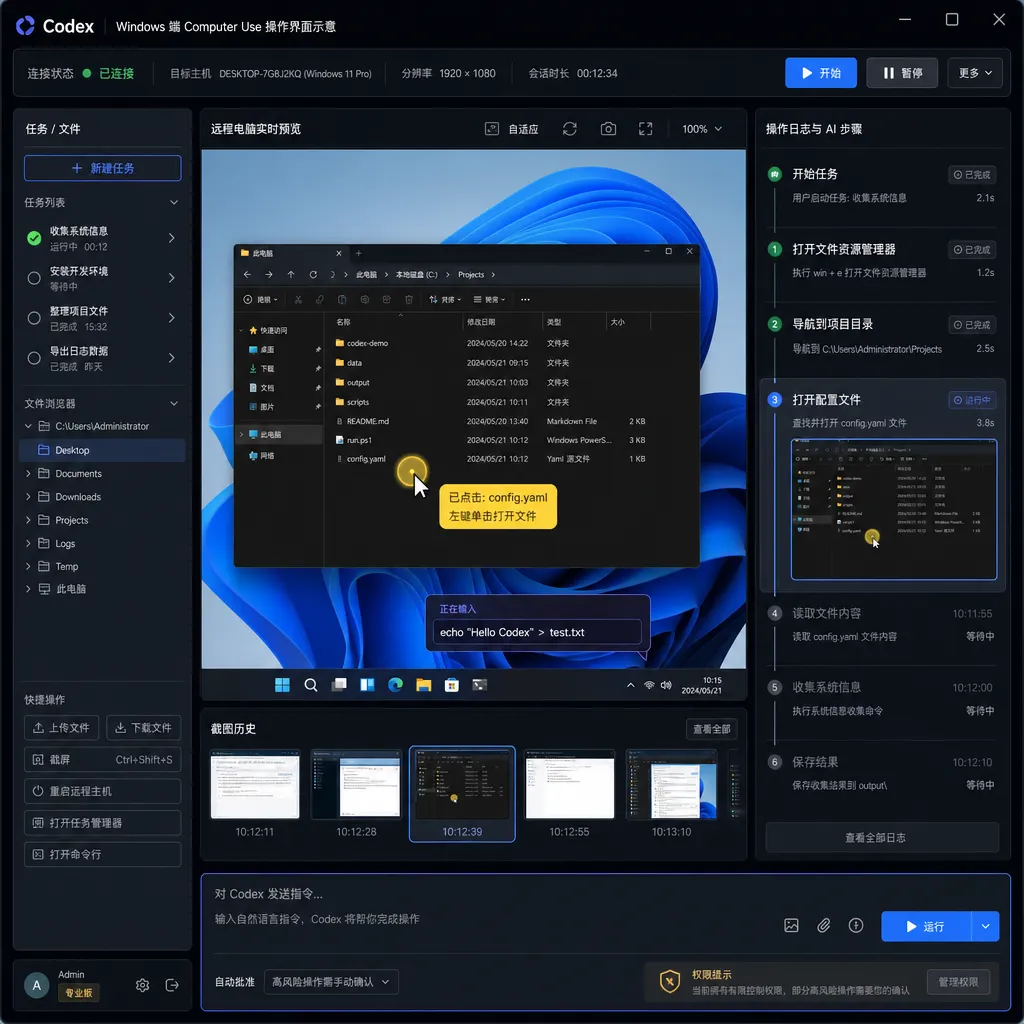
What Computer Use Can Do on Windows
Codex’s Computer Use isn’t RPA, nor is it a script like AutoHotkey. It works more like a real human at the keyboard: understanding the current screen from a screenshot, clicking the mouse, and typing to move tasks forward. The model sees pixels and sends OS-level input events.
In developers’ daily workflows, some high-frequency scenarios immediately come alive:
- Cross-IDE debugging: Running a .NET project in Visual Studio? After a crash, let Codex inspect the stack trace, edit code, and recompile. Previously this required plugins or humans; now Codex can act as the human.
- Windows-only toolchains: In scenarios like Unreal Engine for game development, Keil for embedded systems, or Office automation testing, the macOS version of Codex couldn’t help. Windows users can finally join in.
- GUI regression testing: Let Codex run a client with an interface, capture screenshots, click all the buttons, and check for errors—closer to real user behavior than the Selenium approach.
Before enabling it, you’ll need to install the Computer Use plugin in Codex settings. On macOS, it requires screen recording and accessibility permissions; on Windows, the official docs highlight that the "target window must remain visible"—a clue that’s worth unpacking below.
The Gap with macOS: Missing Locked Use
Codex on macOS includes an interesting feature called Locked Computer Use: after the Mac locks, Codex can temporarily unlock it within a controlled window, continue operating apps, and return control when done. This means you can treat a Mac mini at home as a 24/7 AI node—screen dark, user away, work still getting done.
Windows didn’t get that. OpenAI’s docs state plainly: Locked use is for macOS; on Windows, Computer Use is a "foreground capability"—the target window must be visible and unobstructed.
This gap comes down to system architecture. macOS retains a virtual session for screen sharing and sudo operations even after locking, giving OpenAI something to build on. Windows, however, switches to the Secure Desktop upon locking (the isolated screen you reach via Ctrl+Alt+Del), where user-level processes can’t inject input. Implementing a workaround would require the Windows Service + Session 0 route—which goes against OpenAI’s current product philosophy of minimal configuration and permissions.
So the idea of "turning old home computers into a Codex compute network" only technically holds true for Macs right now. Codex on Windows is more like a "daytime workstation assistant."
Cross-Device Remote Control: Commanding Windows from Mac or Mobile
The other big update this time is remote control. From a Mac or mobile ChatGPT app, you can assign tasks to your Windows Codex machine and observe real-time execution.
A typical workflow might look like this:
- On your commute, you remember a bug—open ChatGPT on your phone and say, “Run last night’s failed test on the main branch and send back the log.”
- The Windows workstation at home receives the task; Codex brings the IDE to the front and runs the test.
- You see the log output on your phone, identify that it’s a dependency version issue, tell Codex to update the requirements, and rerun.
This is a qualitative leap from the "manual mobile remote desktop" methods (like using screen mirroring apps). Those essentially turned your phone into a display—you still had to click everything yourself. Codex’s remote control, by contrast, is true task delegation: you specify the desired outcome, and it figures out how to achieve it.
But there’s a catch: because Windows lacks Locked Use, remote control only works when the screen is unlocked. So in practice, you’ll need to disable lock screen or passwords before leaving—something most enterprise environments prohibit by group policy.
Regional Restrictions and Compliance
By the way, although Computer Use for Codex now supports both macOS and Windows, the official notice explicitly states it’s not available in the EEA, the UK, or Switzerland. While no reason was given, it’s likely tied to AI Act and GDPR compliance concerns related to “automated decision making” and “screen recording.” Regulators understandably need time to digest the idea of an AI model freely clicking around your desktop.
For developers in China, using the Codex app itself requires a ChatGPT account. But if you only need Codex’s model capabilities for coding agents, calling it via the API is the smoother route. The OpenAI Hub has been tracking this: the gpt-5-codex models are now available through aggregated services and remain compatible with the OpenAI API format.
Profile Panel: Finally, Transparent Spending
An underrated part of this update is the new Profile panel. It includes two major features:
- Real-time token usage graphs: View token consumption by time or task—see which operations were most expensive.
- Self-imposed usage caps: Set limits that automatically stop execution upon hitting thresholds.
For anyone running persistent agents, this is essential. Each Codex Computer Use session sends screenshots as image inputs, which burn tokens quickly—a half-hour debugging run can easily hit hundreds of thousands of tokens. Previously, Codex lacked visibility here; you’d only realize where your money went when the bill arrived.
Now, with charts and limits, you’re less likely to wake up to find that an agent got stuck in a loop and spent $200 overnight—a problem the community has seen more than once.
Putting This Update in Context
Looking at Codex’s changelog over the past six months reveals a clear trajectory:
- Independent desktop app → freed from browser and IDE plugin constraints
- In-app browser → enabled the agent to access web resources
- Computer Use (macOS) → allowed control of local desktops
- Remote SSH → enabled control of remote servers
- Mobile remote control → supported cross-device task triggers
- Computer Use (Windows) → completed platform coverage
OpenAI’s Codex strategy diverges sharply from Claude Code’s. Anthropic is prioritizing CLI integration, IDE embedding, and SDKs for third-party development. OpenAI, meanwhile, is building an independent desktop agent that can manipulate everything. The result: two radically different product archetypes—one a developer tool, the other a “digital employee.”
With Windows Computer Use now live, Codex’s control foundation extends from Apple’s ecosystem to over 70% of global PCs. The next logical step is likely Linux—even though desktop use cases there are fewer, server-side agent control is a key enterprise entry point.
Practical Advice for Developers
If you’re planning to upgrade and test today:
- Start with a secondary Windows machine. Computer Use requires input injection and screen capture permissions, so test it safely before moving to your main workstation.
- Put the target app on a separate virtual desktop. Use Windows’ multiple desktops (Win+Tab) to isolate Codex’s workspace from your own.
- Set a conservative token cap. In the Profile panel, configure a cautious threshold initially; observe average consumption before expanding it.
- Check your power and lock settings before remote use. Disable sleep and lock screen on the target Windows system to ensure remote operations succeed.
- Avoid tasks involving password fields. Since screenshots are sent to the model, keep sensitive information out of view.
Windows Computer Use is finally here—but for now, it’s the “someone’s-home” version. When OpenAI finds a solution to the Session 0 problem and introduces Locked Use to Windows, only then will the vision of a “house-wide Codex compute network” truly be realized.
References
- Codex App launches Computer Use and Cross-Device Remote Control on Windows - linux.do — First community discussion of the update
- OpenAI’s Secret Matrix Revealed: All Your Devices Linked into One Codex Supercomputer - Zhihu — Scenario-based analysis of cross-device remote control
- Codex Officially Announces Remote Control, Windows Users Hold Tight - Zhihu — Comparison with pre-official workarounds for Windows users
- How to Enable Codex Remote/Mobile on Windows in the Latest Build - Reddit — Technical discussion of early community hacks