
Copilot CLI Slash Command in Action: Holding the Terminal Agent in Your Hands

GitHub recently released the official beginner’s guide for Copilot CLI slash commands, giving control of terminal AI Agents back to developers. This article outlines commonly used commands, context management logic, and practical workflows.
Copilot CLI Slash Command in Action: Holding the Terminal Agent in Your Hands
In early June, GitHub updated the beginner’s documentation series for Copilot CLI, with one theme: how to use slash commands to manage the AI Agent running in your terminal. It’s not groundbreaking news, but for those who deal with Copilot in the terminal daily, it’s an update worth pausing to read carefully — because since Copilot CLI officially GA’d in the second half of 2025, it has evolved from “a little command-line helper you can ask questions” into a complete toolchain with Agent mode, sandbox, and MCP, and the slash command is the steering wheel of that toolchain.
If you’ve recently found that Copilot CLI’s context blows up after running for a while, or that you have to repeat explaining your project structure each time, chances are you’re not making use of slash commands. This article explains exactly what they are and how they work.
1. What Copilot CLI Looks Like Now
Let’s quickly check the current state, so no one is stuck with last year’s impression.
Now, after installing gh extension install github/gh-copilot (or directly the copilot package), typing copilot in the terminal starts an interactive session. Unlike tools such as Cursor, Claude Code, or Aider, Copilot CLI is by default a true Agent — it can read files, modify files, run commands, call MCP, and when you first enter a directory, it asks whether it’s allowed to modify that folder.
Key capabilities to keep in mind when we later compare with slash commands:
- Automatic context compaction: When the conversation nears 95% of the token limit, it automatically compacts history without disrupting the flow
- Local/cloud sandbox:
/sandbox enableturns on the local sandbox, orcopilot --cloudruns directly in an isolated cloud environment - Session resume:
--resumeor/resumecontinues work from where you left off yesterday - Built-in GitHub MCP: Merge PRs or check Issues directly in the CLI
- Custom Agent: Add skills or instructions for team customization
Many of these abilities are triggered by slash commands — they’re not just cosmetic; they’re the Agent’s control panel.
2. The Most Frequently Used Slash Commands
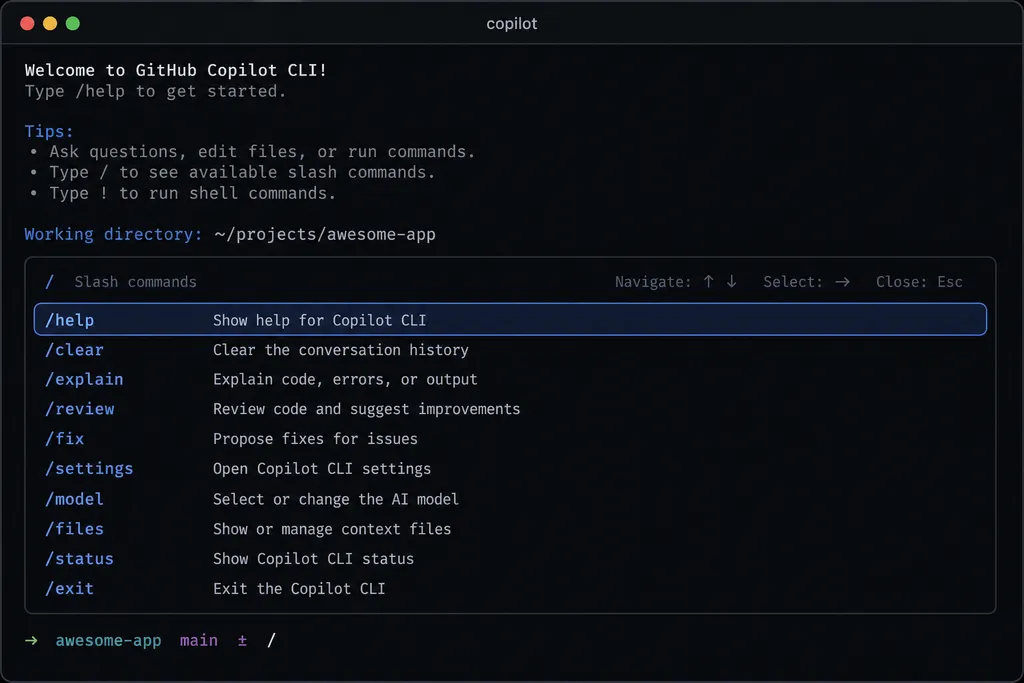
Once inside Copilot CLI, just type / to see a list of all available commands. No need to memorize them — you’ll remember naturally with use. But there are a few you’ll encounter daily, so keep them in mind.
/help and /
It may seem obvious, but Copilot CLI’s command set is growing fast. After each upgrade, it’s quicker to /help and see what’s new than to check the changelog.
/model
Switches the underlying model. This is the biggest change for Copilot CLI this year — from only GPT in the past to now being able to choose between GPT‑5, Claude Sonnet 4.5, Gemini, and others. Different tasks call for different models, and in the terminal, switching is just a slash command:
- For coding and bug fixes, most people now default to Claude
- For heavy reasoning or architecture design, switch to GPT‑5
- For batch tasks that aren’t too complex, use cheaper models to save quota
By the way, if you want to implement multi‑model switching in your own toolchain, platforms like OpenAI Hub (openai-hub.com) let you call GPT, Claude, Gemini, DeepSeek with a single key, compatible with OpenAI format and with direct access from within China, without separate integrations for each provider.
/clear and /compact
Two similar-looking commands that do totally different things.
/clear: Aggressively clears the current session context. Useful when switching from one task to a completely unrelated one — e.g., after tuning CI and moving on to writing documentation./compact: Lets the model summarize and compress earlier conversation, keeping key information while freeing up token space. Use this during a long task when context feels bloated.
Beginners often confuse these — clearing when you shouldn’t means starting from scratch, compacting when you should clear means dragging old task noise along. The rule of thumb: Will you continue this task? If yes, /compact. If no, /clear.
/resume
This is seriously underrated. Copilot CLI automatically saves sessions, and /resume lists them so you can pick one to continue.
Real scenario: You’re halfway through refactoring Friday afternoon, then Monday morning you run copilot --resume, choose Friday’s session, and the Agent remembers exactly where you stopped — even “don’t touch this function yet.” Claude Code also has this, but Copilot CLI’s implementation can bring back cloud Agent sessions to local and continue — meaning you can let Copilot cloud Agent work on a branch on github.com, then resume locally seamlessly.
/sandbox
/sandbox enable puts the current session in a local sandbox, restricting file system, network, and system calls. The point: when you let the Agent act freely, you won’t have to watch it for rm -rf in your home directory.
The more thorough approach is copilot --cloud, running the entire session in GitHub’s cloud isolated environment — slower and costlier, but ideal for letting the Agent handle long-running tasks.
/mcp
Shows which MCP servers are installed and usable. Copilot CLI comes with GitHub MCP by default, so you can directly do in the terminal:
> Review PR #1234, approve if no major issues
The Agent will call GitHub API via GitHub MCP. If you’ve connected other MCPs (Postgres, Slack, Linear, etc.), /mcp lets you check status and troubleshoot connectivity.
/agents
Lists available custom Agents. Copilot CLI includes some ready-to-use Agents, like a code review Agent. You can also define your own — place a config file in the repo describing the Agent’s role, tool scope, and system prompt.
This turns Copilot CLI from “a general assistant” into “a set of specialized roles.” Teams can share Agent definitions, so newcomers just need to clone and instantly get your custom code review rules.
/feedback and /exit
The former sends feedback directly to GitHub, the latter exits. Nothing fancy, but /exit is more graceful than Ctrl+C — it triggers proper session saving.
3. A Real Usage Flow
Listing commands isn’t fun — let’s chain them together for a day’s workflow. Suppose you get a job: add TypeScript to an old Node project and fix a few known bugs.
cd legacy-project
copilot
First time, it will ask about directory trust — choose “permanently trust this folder.”
> Check this project’s structure and dependencies, don’t touch the code yet
The Agent returns a summary. Now you decide if the current model is good enough — if not, /model switch to GPT‑5.
> We’re doing a TS migration. Step one: configure tsconfig, allowJs enabled, progressive migration. You do it.
Agent edits files, runs tsc --noEmit to verify. After the first round, /compact to compress earlier project structure exploration and free tokens for migration.
> Now migrate files under src/utils one by one to .ts, run tests after each change
For long tasks like this, /sandbox enable is recommended, or open a new terminal with copilot --cloud to let it run in the cloud, while you continue other local work.
Halfway through, end the day with /exit. Next day, copilot --resume, pick that session, and continue.
If problems occur, use /mcp to check if GitHub MCP is disconnected (remote long runs can time out).
After finishing:
> Do a code review according to rules in .github/copilot-review.md
This step can be done with the built-in code review Agent or your own — switch via /agents.
4. Comparing with Competitors
Some opinion. Copilot CLI now directly competes with Claude Code, Cursor CLI, and Aider.
vs Claude Code: Claude Code’s advantage is Anthropic’s deep tuning of its own models — handling long context and tool calls in finer detail. Copilot CLI’s advantage is GitHub ecosystem — MCP defaults to GitHub, cloud Agent syncs seamlessly with local, and in enterprises using Copilot subscription, there’s no extra charge.
vs Aider: Aider represents the old git-native workflow, with each change as a commit — highly auditable. Copilot CLI is more modern and Agent-like but means you must be more proactive with sandbox and context management.
vs Cursor CLI: Cursor leans more towards IDE, CLI is supplementary. If you spend 90% of your time in terminal, Copilot CLI is the purer choice.
For slash commands, Claude Code and Copilot CLI are now basically aligned — /clear, /compact, /model, /resume. That’s actually good, proving the interaction paradigm works. But Copilot CLI’s /sandbox and two-way cloud session sync are its unique selling points.
5. Common Pitfalls
A few issues you learn from use:
- Don’t
/clearat the start of every session. Copilot CLI’s session resume is one of its biggest values — develop the/exit+--resumehabit. /compactisn’t a cure-all. If the conversation has gone off track, compaction just solidifies the wrong direction in the summary. In this case,/clearand restart.- Sandbox isn’t enabled by default. On production machines or company laptops, remember to
/sandbox enablemanually or makecopilot --clouda habit. - MCP servers are stateful. In long sessions, MCP may occasionally drop — troubleshooting starts with
/mcp; in most cases, reconnecting is enough. - Custom instructions beat repeating prompts. Put your team’s code style and stack preferences into
.github/copilot-instructions.md— saves tokens and mental effort compared to explaining every session.
6. Final Notes
Copilot CLI’s evolution this year is clear: from “chatting in the terminal” to “Agent in the terminal,” and slash commands are the Agent’s physical buttons. There’s no philosophy here — it’s about proficiency. Use them a few times, build muscle memory, and your terminal coding rhythm will be reshaped.
If you’re just starting, practice /help, /model, /clear, /compact, /resume first. The rest you can look up when needed.
References
- GitHub Blog: Copilot CLI for Beginners - Slash Commands — GitHub official beginner’s guide, slash command overview
- GitHub Blog: A Cheat Sheet to Slash Commands — Slash command cheat sheet, handy reference
- GitHub Docs: Copilot CLI User Documentation — Official Chinese docs, includes sandbox, MCP, custom Agent full description
- GitHub Docs: Copilot CLI Command Reference — Complete CLI argument reference