
VSCode Copilot Finally Opens Custom API Key Support
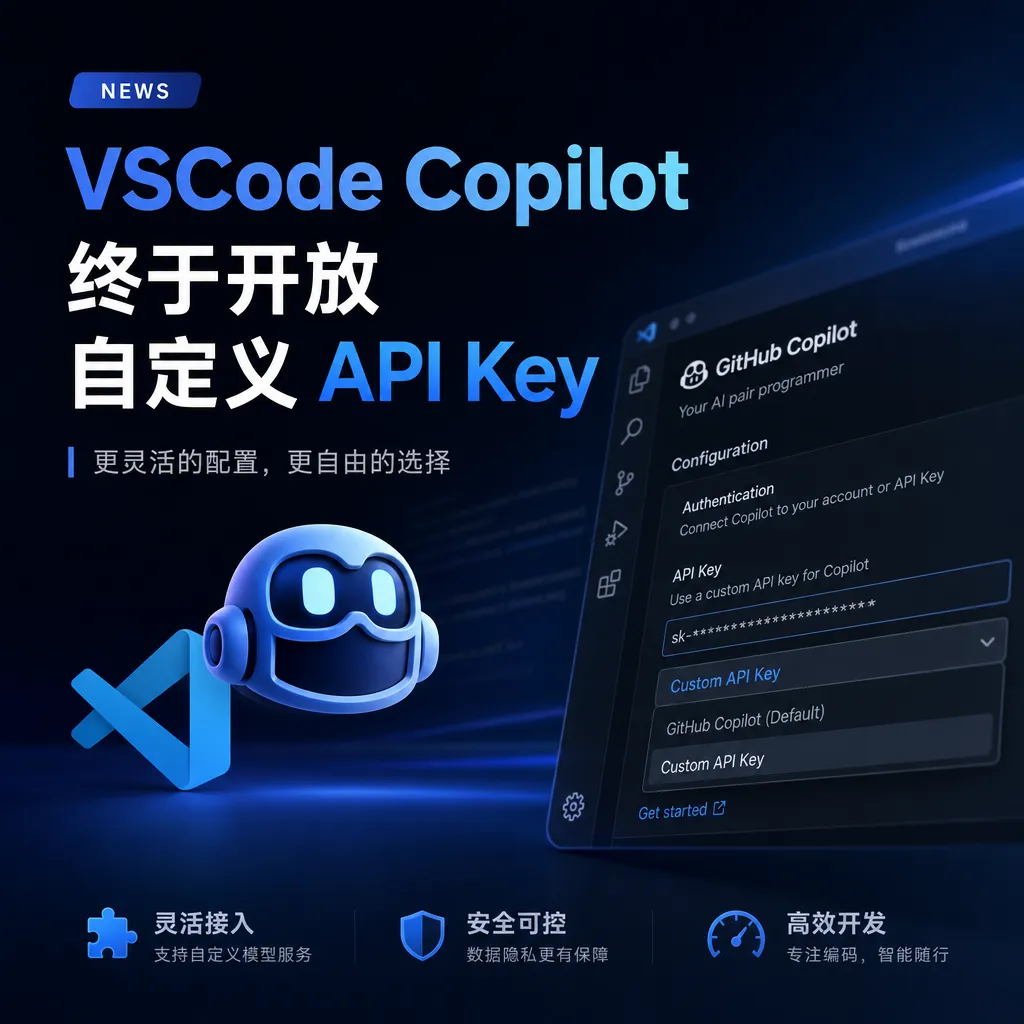
GitHub Copilot in VSCode now officially supports the BYOK (Bring Your Own Key) feature, allowing developers to configure their own API keys to connect to third-party models such as OpenAI, Anthropic, and Google, breaking Copilot’s long-standing closed model ecosystem.
After Waiting So Long, Copilot Finally Came Around
On June 18, Microsoft announced on the official VSCode blog that the BYOK (Bring Your Own Key) feature is now officially available to all Copilot Business and Enterprise users. Simply put: you can now use your own API Key in Copilot Chat to call third-party models.
This actually started beta testing back in April, but it wasn’t fully usable until this week. For many developers, this might be the most practical update since Copilot was released.
Why say that? Because Copilot has always had a frustrating limitation: it’s a closed system. You pay for the subscription, and can only use the models GitHub provides. Want Claude to write complex logic? Nope. Want Gemini to handle long context? Also nope. Either you keep switching back and forth between Copilot and other AI tools, or you just put up with it.
Now this restriction is gone.
What Exactly Can BYOK Do?
First, clarify the boundaries: BYOK only applies to the Chat feature. Code completion (the gray suggestions that pop up while typing) still runs on Copilot’s original models—this part hasn’t changed.
But Chat is the real focus. Copilot Chat in VSCode is getting more and more capable: explaining code, refactoring, writing tests, debugging, and even using Agent mode to automatically perform multi-step tasks. In these scenarios, the choice of model is now wide open.
Supported Providers
Currently BYOK has built-in support for the following AI service providers:
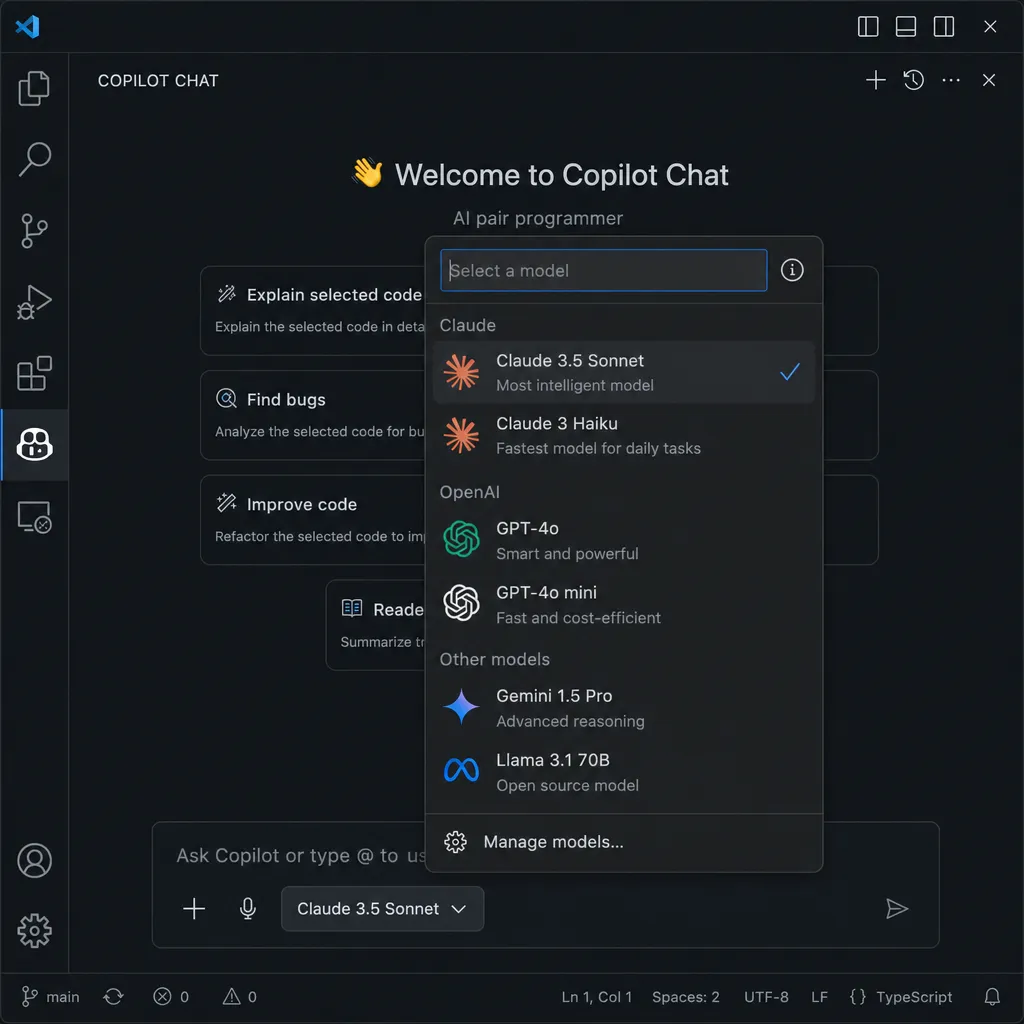
- OpenAI — GPT-4o, GPT-4 Turbo, o1/o3 series, etc.
- Anthropic — Claude 3.5/4 series
- Google AI (Gemini) — Gemini 1.5/2.0 series
- Azure OpenAI — Common for enterprise users, billed via Azure subscription
- OpenRouter — Model aggregation platform, one key accesses multiple providers
- Hugging Face — Open-source model hosting, supports the Inference API
Besides cloud models, local models can also be integrated:
- Ollama — The most popular local model runner
- Foundry Local — Microsoft’s own local model solution
- LM Studio — GUI-based local model manager
If your provider isn’t on the list, you can also install third-party Language Model Provider extensions from the VSCode Marketplace to add support. This means in theory any service compatible with the OpenAI API format can be hooked up.
Setup Process: Simpler Than Expected
Honestly, I thought this kind of enterprise feature would be complicated—requiring admin approval, lots of policy configuration, etc. In practice, testing showed it’s very straightforward for regular developers.
Step 1: Open Model Management
In VSCode, open the Copilot Chat panel, click the model selector (the dropdown showing the current model name), and choose "Manage Models...".
Step 2: Choose a Provider
A configuration window will pop up listing all supported AI providers. Click the one you want, e.g., Anthropic.
Step 3: Enter API Key
The system will prompt you to enter that provider’s API Key. Once entered, VSCode will automatically fetch the list of models accessible with that key.
Step 4: Choose Models to Enable
After the list appears, you can check the models you want to use in Chat. No need to select all—just pick a few you use frequently, or the model selector will get too long.
Once configuration is complete, these models will appear in the Chat model selector alongside Copilot’s built-in models. Switching is just one click.
About API Key Security
VSCode stores your API Key in the local secure storage (Credential Manager on Windows, Keychain on macOS, Secret Service on Linux). Keys are not uploaded to GitHub or Microsoft servers; when calling third-party models, requests are sent directly from your local machine.
This matters. It means models called via BYOK have nothing to do with GitHub—the traffic doesn’t pass through GitHub’s proxy and isn’t subject to Copilot’s request limits. Of course, costs are settled directly between you and the provider.
Practical Use Cases
Easy setup is one thing, but the real point is: what’s it good for? Here are some key scenarios:
Scenario 1: Complex Code Refactoring with Claude
Copilot’s built-in models handle simple tasks fine, but for refactoring needing extensive context and complex reasoning, they can fall short. Claude 3.5 Sonnet is widely acclaimed for code understanding and refactoring, and now you can use it right in Copilot Chat.
For example, migrating an old project from Class components to Hooks, or converting a sync API to async—tasks needing cross-file consistency may get better results with a stronger model.
Scenario 2: Long File Analysis with Gemini
Gemini 1.5/2.0 series offers the largest context windows available—starting at 1 million tokens. If you need to analyze a huge log file, understand a massive config file, or let AI read multiple related files at once, Gemini’s long-context capability comes in handy.
Scenario 3: Saving Money
This is probably a common need. Copilot Business costs $19/month; Enterprise $39/month. If you mainly use Chat and have low usage, using your own API Key with token-based billing could be cheaper.
Especially lightweight models like Claude 3.5 Haiku or GPT-4o-mini, which are adequate for everyday Q&A, and cost a fraction of flagship models.
Scenario 4: Privacy Compliance
Some companies have strict compliance requirements for code data and don’t want it passing through GitHub’s servers. Using BYOK to connect to Azure OpenAI (via the company’s Azure subscription) or local models gives full control over data flows.
Scenario 5: Testing New Models
New models release every few weeks, each aiming for top benchmarks. Previously, trying them meant switching tools; now you just add a key to Copilot and you can use them. For example, OpenAI’s new o3 or Anthropic’s Claude 4—configure and compare them directly in programming contexts.
How It Compares to Other Solutions
Before BYOK, the main ways to use custom models in VSCode were:
Continue (Open-Source Plugin)
Continue is the most popular open-source AI coding assistant plugin, supporting custom models from day one. Highly functional and customizable.
But Continue and Copilot are separate systems—different shortcuts, interaction styles, and scopes. If you’re used to Copilot’s workflow, switching requires adjustment, and running both can sometimes cause shortcut conflicts.
BYOK’s advantage is it’s inside Copilot—no tool switching. You can use Copilot’s code completion while switching Chat to your custom model, making for a seamless experience.
Cursor
Cursor took another approach—forking VSCode and deeply integrating AI capabilities. It supports custom models and has aggressive Agent-mode features.
The problem is Cursor is its own editor, not fully compatible with the VSCode ecosystem. Some plugins may have issues, and its update cycle isn’t synced with VSCode. For developers heavily dependent on VSCode plugins, switching editors can be costly.
Cline / Roo Code and Similar Plugins
Cline, Roo Code and such focus on Agent capabilities—automatically executing multi-step tasks—and also support custom models. Their positioning is more “autonomous coding agent” than “coding assistant.”
These tools aren’t direct competitors to Copilot—more complementary. You can use Copilot for daily completions and Q&A, and Cline for complex automation.
BYOK's Positioning
Put simply, BYOK isn’t trying to replace these tools—it’s giving Copilot users a “use other models without changing tools” option. If you already use Copilot, you now have more flexibility. If you’re happy with Continue or Cursor, BYOK might not lure you back.
What Enterprise Admins Need to Know
For enterprise users, some management details are important:
Policy Control
Org admins can disable BYOK in Copilot policy settings on github.com. If your company has strict data flow controls and doesn’t want employees connecting to third-party services, you can disable it.
Policy path: Organization Settings → Copilot → Policies → "Bring Your Own Language Model Key in VS Code"
Separate Billing
As mentioned before: BYOK calls are billed separately from Copilot subscriptions. Copilot fees still apply, while token costs are settled between you and the provider.
Thus, heavy BYOK use may incur extra API costs. Admins need to assess whether to regulate API Key usage.
No Centralized Key Management
Currently BYOK is user-configured only—no org-level key distribution. If a company wants to share a unified Azure OpenAI endpoint, it may need to coordinate through other means (e.g., internal docs, config templates).
This may improve in future, since enterprise clients often want centralized management.
Some Limits and Caveats
Code Completion Not Supported
Again: BYOK applies only to Chat. Code completion (inline suggestions) still uses Copilot’s own models—this cannot be customized.
Why? Possibly because completion requires extremely low latency, triggering inference every few keystrokes. Third-party API latency is uncontrollable. Or for business reasons—completion is Copilot’s core selling point, so they may not want to open it.
Some Features May Be Incompatible
Some advanced Copilot features (like Workspace search or @workspace commands) are optimized for built-in models. With third-party models, these may not work properly or lose effectiveness.
The official docs don’t specify which features have compatibility issues—you may need to find out by trying.
Context Handling Differences
Different models handle context differently. Copilot’s built-in models may have extra optimization for VSCode’s code context, while third-party models use generic Chat APIs and may be less precise on code structure.
This doesn’t mean third-party models are bad—they may shine in other areas, like reasoning or long-context support—but not necessarily in deep IDE integration.
What This Means for Developers
Broadly speaking, BYOK represents a trend: AI coding tools are shifting from “closed platforms” to “open frameworks.”
Two years ago, each AI coding assistant built its own models, products, subscriptions—no choice for users. Now it’s different. Continue was open from the start, Cursor supports custom models, and even Copilot—once the most closed—is opening up.
This is good for developers. Competition improves products; openness gives more choices.
Of course, “having choices” means you need to choose. Previously there was only one model, so no thinking required; now a dozen models all claim to be best for coding—you have to test and judge.
My suggestion: don’t configure all models at once. Start with Copilot’s built-in models. When you hit scenarios where they fall short, consider switching. For example, if Copilot often makes mistakes on certain refactoring tasks, try Claude; if long file analysis keeps missing details, try Gemini.
Targeted solutions beat blind model chasing.
In Conclusion
BYOK itself is simple—it lets you use your own API Key in Copilot Chat. But the direction it signals is more important: even GitHub is now acknowledging “users might want other models.”
If you’re a Copilot Business or Enterprise user, you can try it now. Setup is easy—just a few minutes. If you’re on a personal plan, it’s not supported yet, but given the trend, it’s likely just a matter of time.
For developers in China, directly calling OpenAI or Anthropic APIs may face network issues. Consider using aggregation services like OpenRouter, or API proxies supporting domestic access. Services like OpenAI Hub support OpenAI-compatible API calls, configured same as directly using OpenAI.
References
- Linux.do discussion: Copilot in VSCode supports BYOK via marketplace plugins — Community thread with user test feedback
- GitHub Changelog: Bring your own language model key in VS Code now available — GitHub official changelog, detailing feature scope and policy control