
Figma Config 2026: Code Layer and AI Motion Effects Are Here
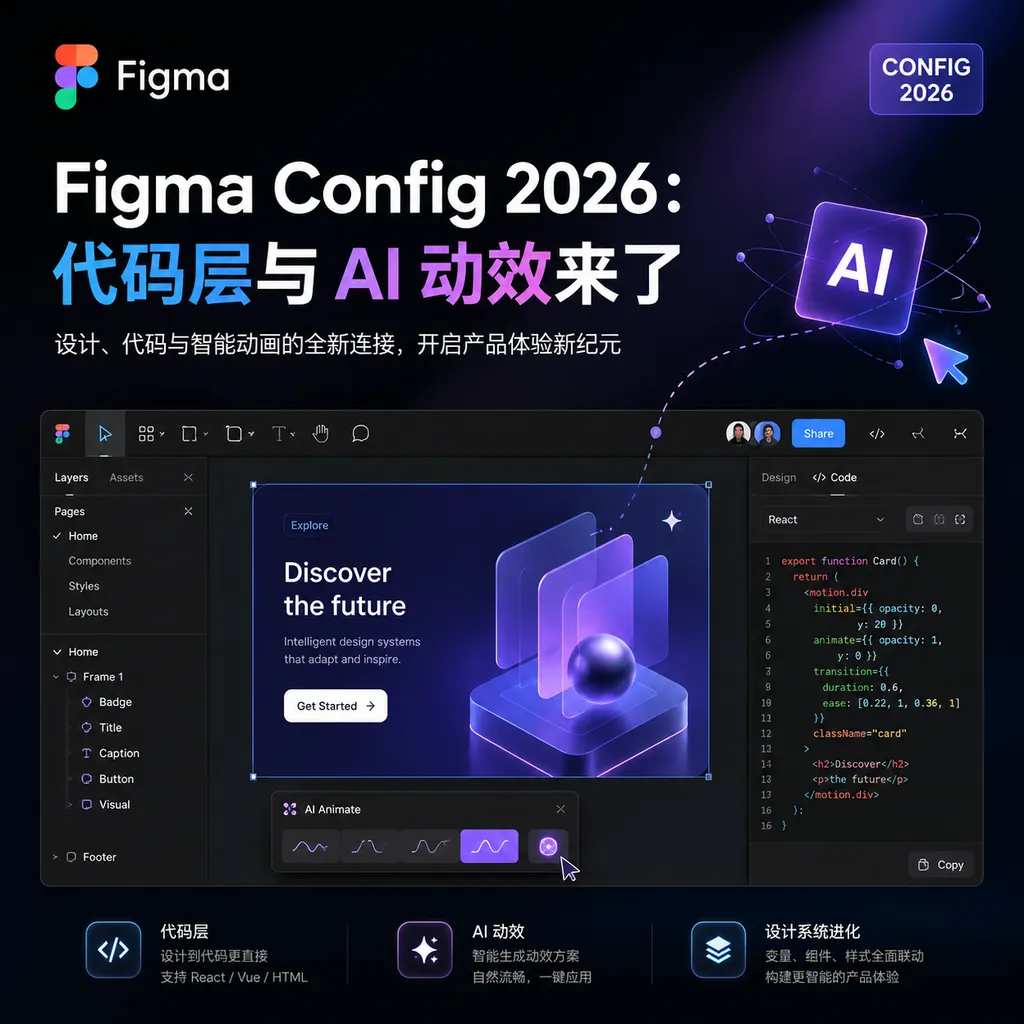
At its annual Config conference, Figma announced major updates: editing code directly on the design canvas, generating animations and shaders using natural language, and AI-powered automatic plugin creation. The wall between designers and developers might really be coming down this time.
Figma has finally taken action toward integrating design and development.
On June 24, Beijing time, at its annual Config conference, Figma announced a series of major updates: Code Layers let you write code directly within the design canvas; AI motion generation enables complex animations from a single textual description; shader tools bring graphics programming into design software. More radically, the entire canvas has been redesigned into a “full-stack development optimized” mode—teams, AI Agents, tools, and assets are all crammed into the same workspace.
This isn’t just a minor tweak. Figma is attempting to redefine the “design tool” category.
Code Layers: Designers can understand code, developers can touch design
For years, the “last mile” from design mockup to code has been a difficult problem. Designers create UI in Figma, and developers get either a bunch of sliced images and annotations or plugin-generated code that “looks about right” but can’t actually be used directly.
Figma’s newly introduced Code Layers aim to solve this problem at its root.
What it is
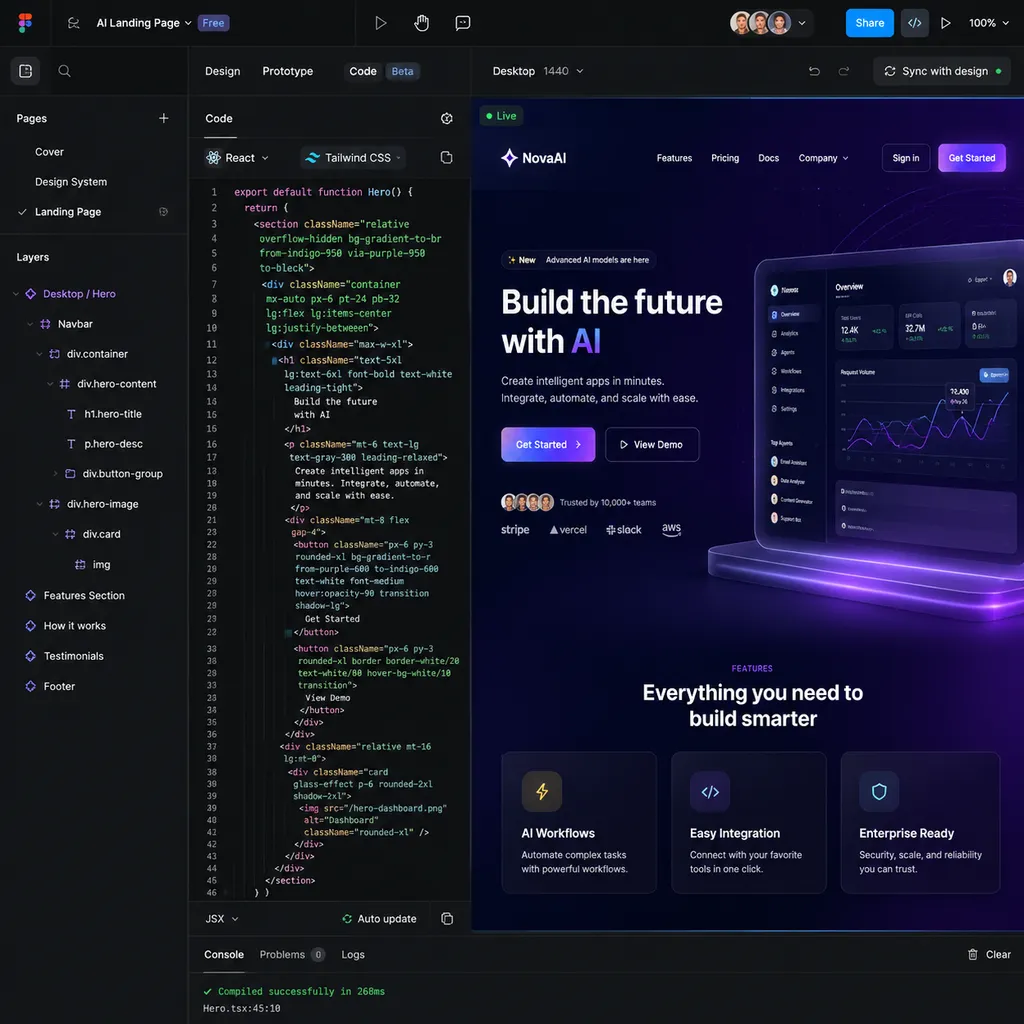
In simple terms, a Code Layer is a new layer type. You can create a Code Layer in the design canvas and write HTML, CSS, JavaScript, or even React components directly in it. The code is rendered in real time into visual design elements, mingling on the same canvas with rectangles and text boxes you create in the usual way.
The key is: you don’t need to leave Figma.
The old workflow looked like this: Designer creates UI in Figma → Exports design file → Developer writes code in VS Code → Finds results don’t match the design → Back-and-forth discussions and revisions → Designer updates mockup → Developer updates code… ad infinitum.
The new workflow can be: Designer creates static UI → Developer implements interaction logic directly in the same Figma file using Code Layers → Real-time preview → Designer confirms or tweaks on the spot → Export usable code directly.
What it means for developers
Code Layers support much more than simple HTML/CSS. According to Figma, it’s optimized for “full-stack development.” Meaning you can write:
- Responsive layout logic
- State management code
- API calls
- Even complex business logic
Technically, it’s like having a lightweight CodeSandbox or StackBlitz built right into Figma. Code Layers have their own runtime environment which can execute JavaScript, with the rendered results mapped directly onto the canvas.
This solves a longstanding pain point: previously, Figma prototypes could only use its built-in set of prototype tools (click-to-transition, basic animations), and anything more complex wasn’t possible. Now, theoretically, any interaction you can implement with code can be showcased in a Figma prototype.
How it compares to existing solutions
There are many tools out there for translating design into code:
- Anima: exports Figma designs into React/Vue code, but the code quality has been criticized, with deeply nested divs.
- Locofy: uses AI to improve exported code, better than Anima, but still follows the “export” model.
- Builder.io: visual builder + code generation, but it’s an independent platform outside the Figma ecosystem.
- Various Figma plugins (CodeFun, Lanhub, etc.): mark dimensions, export assets, some support code generation but with varying quality.
Figma Code Layers take a different approach. It’s not “translate design into code,” but “make code part of the design.” Design and code coexist in the same file and sync in real time—fundamentally avoiding information loss during “translation.”
Of course, this raises new questions: Do designers need to understand code? Do developers need to learn Figma operations? How are collaboration boundaries drawn? Figma hasn’t given a definitive answer; teams may need to explore by themselves.
AI Motion Graphics: Make animations with your voice
The second major feature is AI-driven motion generation.
Any designer who has worked on UI motion knows how tedious it is. After Effects has a steep learning curve, Lottie exports come with various compatibility issues, and Figma’s built-in Smart Animate can handle only simple transitions. For slightly more complex animations—a microinteraction after a button click, an entry effect for a list item—you either hire a motion designer or have a developer manually code it in CSS/JS.
Now Figma says: Describe the effect you want, and AI will generate it.
How to use it
It’s conversational. In Figma’s chat interface, you can type descriptions like:
“When this button is clicked, shrink by 10%, bounce back to original size, and simultaneously change background color from blue to green over 0.3 seconds.”
Or something more abstract:
“Add a bouncy entrance animation to this card, make it feel lively.”
AI interprets your intent and generates the corresponding animation effect, applying it directly to the selected element. If you’re not satisfied, you can continue tweaking with natural language: “Faster,” “Less bouncy,” “Add a slight rotation.”
Technical details
From official demos, the generated animations are based on Figma’s native animation system—not exported as Lottie or CSS code. This means animation parameters (easing curves, duration, delay, etc.) can be edited directly in Figma without external tools.
Animation types supported include:
- Property animation: transitions for position, size, rotation, opacity, color
- Path animation: move elements along a specified path
- Sequence animation: animate multiple elements in timed sequence
- Interaction triggers: click, hover, scroll, etc.
Interestingly, Figma has also introduced Shader Tools. Shaders use code to define graphic rendering effects, commonly seen in game development and creative coding. Bringing them into design software means you can achieve visual effects hard to realize in traditional design tools—dynamic gradients, noise textures, light refraction, and more.
Combined, these two features boost Figma’s animation capabilities from “barely usable” to “approaching professional quality.”
Real-world effectiveness to be verified
AI-generated animations sound promising, but a few questions need hands-on use to answer:
- Interpretation ability: How accurately can AI understand abstract descriptors like “lively,” “elegant,” “techy”?
- Fine control: Complex animations often require millisecond-level adjustments; can natural language achieve that?
- Consistency: Does the same description produce identical results each time? How does a team ensure uniform animation style?
- Export compatibility: Can generated animations be exported into formats usable by developers?
Industry trends from tools like Runway and Pika prove AI’s potential in dynamic content generation. Figma’s direction of bringing it to UI design is right. However, UI motion design demands greater precision and control than video creation—a question only time will answer.
AI Plugin Generation: Even without code skills, you can make plugins
The third update introduces AI-generated custom plugins.
Figma’s plugin ecosystem has always been vibrant, with tens of thousands of community plugins covering everything from icon libraries to auto-layout tools. But if you have a specific need—say, your team’s design guidelines require all buttons to have an 8px corner radius and you want a one-click checker—you either find an existing plugin (unlikely to perfectly match) or write one yourself (requiring JavaScript and Figma plugin API knowledge).
Now Figma says: Describe your requirement in natural language, and AI will write the plugin for you.
Use cases
This feature suits repetitive, rule-driven tasks:
- Design spec checks: ensure all text uses specified font and size
- Batch operations: rename all selected layers with a unified prefix
- Data filling: read data from JSON file and fill the corresponding positions in design
- Format conversion: convert all color values in the design to HSL format
Manually doing these is tedious and error-prone; writing plugins is too high a barrier for non-developers. AI plugin generation fills this gap.
Relation to Figma Make
Speaking of AI capabilities, we must mention Figma Make—a tool that creates prototypes from descriptions. You can type “Make me a shopping cart page for an e-commerce site” and AI generates an interactive prototype, powered by the Claude 3.7 model.
AI plugin generation can be seen as an extension of Make’s capabilities. Make produces design content; plugin generation produces design tools. Together, they mean Figma is integrating AI into every step of the design process.
Bigger ambition: Full-stack canvas
Taken in isolation, Code Layers target developers, AI motion targets designers, plugin generation targets those with special needs. Together, Figma’s ambition is clear: turn the canvas into a full-stack development environment.
Officially, the new canvas is “full-stack development optimized,” integrating “team, AI Agent, tools, and assets” into one place.
What does this mean?
The role of AI Agents
Note the term “AI Agent.” It’s not just a chatbot answering questions—it’s an intelligent entity capable of autonomously executing tasks. In Figma’s vision, AI Agents may take on roles like:
- Design assistant: automatically adjust elements that do not follow design guidelines
- Development assistant: automatically convert design elements into code components
- Collaboration assistant: notify stakeholders of design changes and generate change summaries
- Quality checker: detect accessibility issues, responsive compatibility problems in designs
Figma has already launched MCP (Model Context Protocol) servers, which can connect Figma’s design context directly into VS Code, Cursor, Windsurf, Claude, and other coding tools—showing they’re seriously thinking about deep integration between AI Agents and design tools.
Impact on design-dev collaboration
Traditional design-dev collaboration is linear: requirements → design → development → testing → launch. Each stage has clear “handoff” moments, which are also points of friction and information loss.
Figma’s update tries to make this process collaborative: designers and developers working within the same environment, changes visible in real time, with AI handling tedious conversion and checking tasks. Ideally, the “handoff” itself can be eliminated.
Of course, this requires changes in team workflows. If designers still throw over completed work and developers still work independently until finished, no tool will be effective.
Competitive landscape: Figma’s moat
The design tool market has changed rapidly in the past two years. After Adobe’s failed acquisition of Figma, everyone is fighting for territory:
- Adobe: betting on Firefly and AI generation to build an advantage in creative AI
- Canva: moving up from the non-professional market, acquiring the Affinity suite
- Framer: focusing on design-to-site one-click publishing, popular in the landing page market
- Various new tools: Motiff (by Lanhub), MasterGo (domestic Figma alternative), and many AI-native design tools
Figma’s moat? Collaboration network effects.
Unlike editors where personal preference dictates choice, design work naturally requires collaboration—product managers confirming requirements, developers aligning details, other designers maintaining design systems. Once a team establishes workflows in Figma, switching costs are very high.
This update strengthens the moat. Code Layers give developers reason to open Figma; AI features lower usage barriers; full-stack canvas aims to bring more roles into the same collaborative space. The more people use it, the higher the switching cost, and the harder it is for competitors to disrupt.
Can domestic designers use it?
Practical considerations:
First, network issues. Figma access in China is not smooth, and AI features depend on real-time model calls, so latency and stability may be problematic.
Second, pricing. Figma isn’t cheap, and AI features will likely have extra costs or usage limits. Budget-limited small teams may need to weigh cost-effectiveness.
Third, Chinese language support. Official material shows AI optimized mainly for English. Whether Chinese descriptions are accurately understood and whether generated results are stable requires testing.
The good news: Figma’s design-to-code approach already has domestic practice. JD’s JoyCode team has built an MCP protocol-based tool to convert Figma designs to frontend code; Alibaba’s imgcook and 58’s Picasso are exploring similar directions. Even if Figma’s AI features aren’t usable yet in China, domestic alternatives are maturing quickly.
What does this mean?
Back to the initial question: Is this update important?
Individually, Code Layers aren’t new (WebFlow, Framer already have them), AI motion isn’t new (Runway et al. proved it feasible), AI plugin generation isn’t new (GitHub Copilot for code is already widespread).
Figma’s strength lies in integration. It’s infrastructure for the design field, with millions of daily active users, spanning scenarios from indie devs to big corporate design teams. When these AI capabilities are integrated into a dominant platform, the impact is different.
For designers, learning barriers are lower, capabilities are broader. Effects previously unachievable are now possible; prototypes that once required developer cooperation can be built independently.
For developers, collaboration efficiency may improve. Designers can express intent more precisely, reducing info loss during handoff, and perhaps even reuse code from the design file.
For the industry, the boundary between “design” and “development” is blurring. This doesn’t mean designers must become programmers or vice versa, but that collaboration friction between the roles is decreasing. AI acts as translator and assistant, making it easier for people with different backgrounds to understand each other.
This trend will continue. Looking back in a few years, Config 2026 may be a landmark—the point when design tools began to seriously treat “code” and “AI” as first-class citizens.
Other Config 2026 updates include Figma Sites (one-click publishing designs as websites), Figma Buzz (tools for brand and marketing teams), and Figma Draw (vector drawing tool), but this article focuses on the code- and AI-related core updates.