
This guide teaches you how to connect the Claude Code desktop version to OpenAI Hub by just clicking and copying/pasting—no coding required. Follow along and you’ll get it done in ten minutes.
What you need to prepare
- A computer (Windows / macOS both work)
- An OpenAI Hub account with a Key that starts with
sk- - Claude Code desktop version already installed
If you haven’t installed Claude Code yet, go to the official website, download the installer, and click “Next” all the way through—no pitfalls.
Step 1: Get the Key from OpenAI Hub
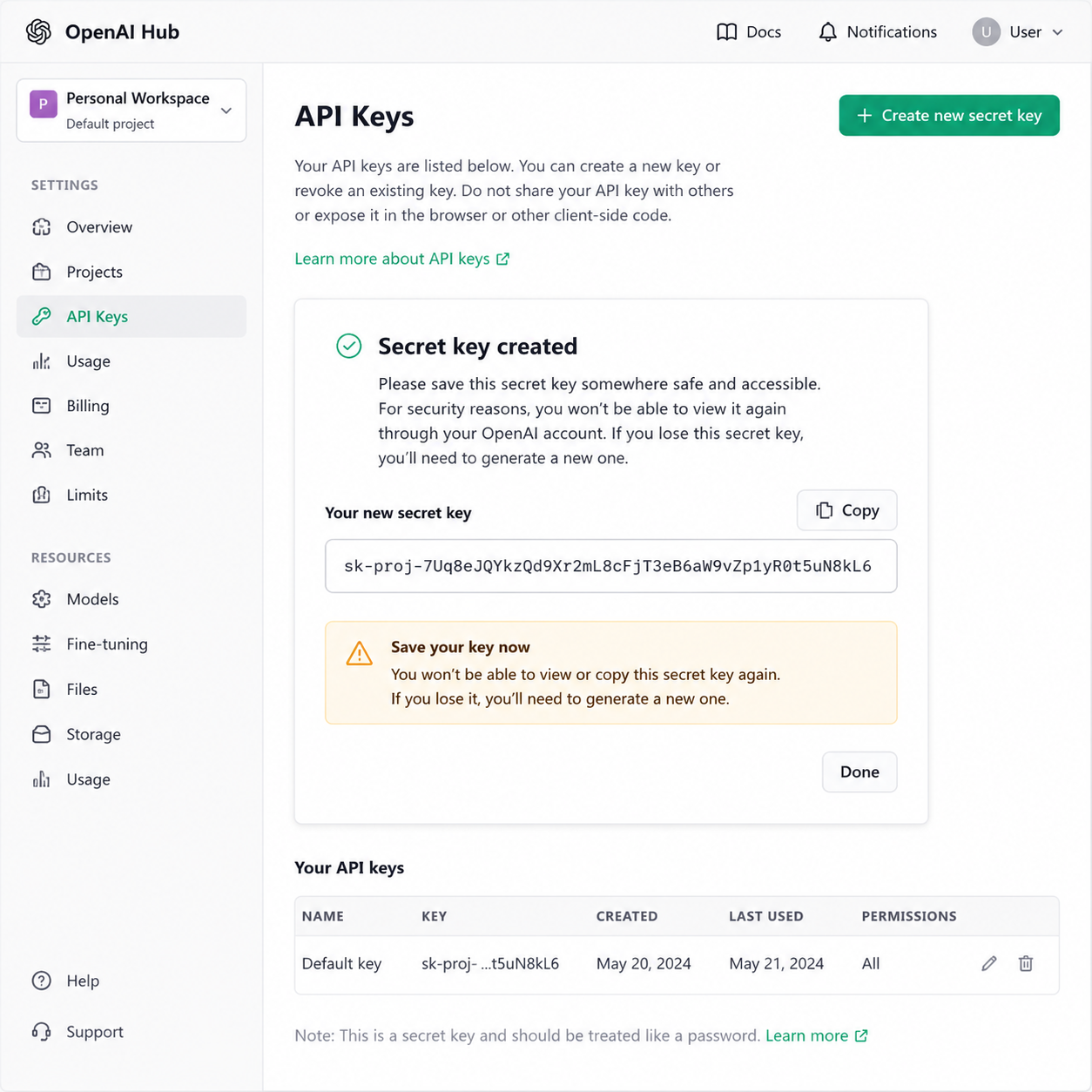
Open your browser, go to openai-hub.com, log in, and find “API Keys” or “Key Management” in the left menu. Click “New”, give the Key a name (e.g., claude-code), and after creating it, you’ll get a string like sk-xxxxxxxx in a popup.
This is a common pitfall: the Key will only be displayed once. If you close it, you will never see it again. Copy it immediately and save it in Notepad before closing the page.
Step 2: Open Claude Code Settings
Open Claude Code desktop version. Look at the top right (on macOS, it’s in the menu bar at the top left), find the gear icon ⚙️ or “Settings”, and click it.
In the settings panel, look for “Model Provider” or “API Settings”. Different versions may call it differently—look for labels containing “API”, “Endpoint”, or “Provider”.
Step 3: Fill in two key pieces of information
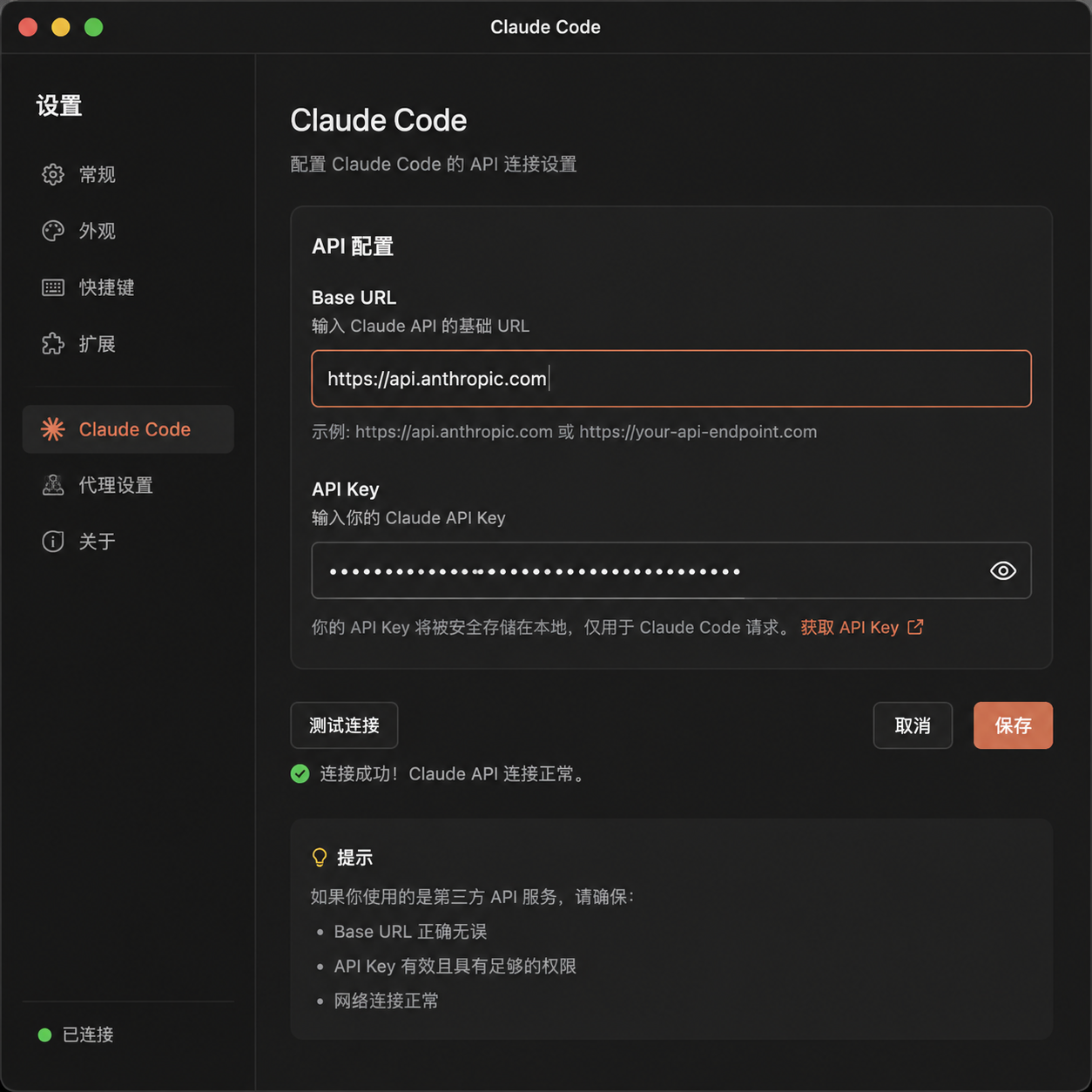
In API settings, fill in the following:
| Field | Value |
|---|---|
| API Base URL (or Endpoint) | https://api.openai-hub.com/v1 |
| API Key (or Auth Token) | The sk-your-api-key you just copied |
Note: Don’t forget the /v1 at the end of the Base URL, or it won’t connect. Also, don’t add an extra slash / at the end—some versions are sensitive to that.
Step 4: Choose a model
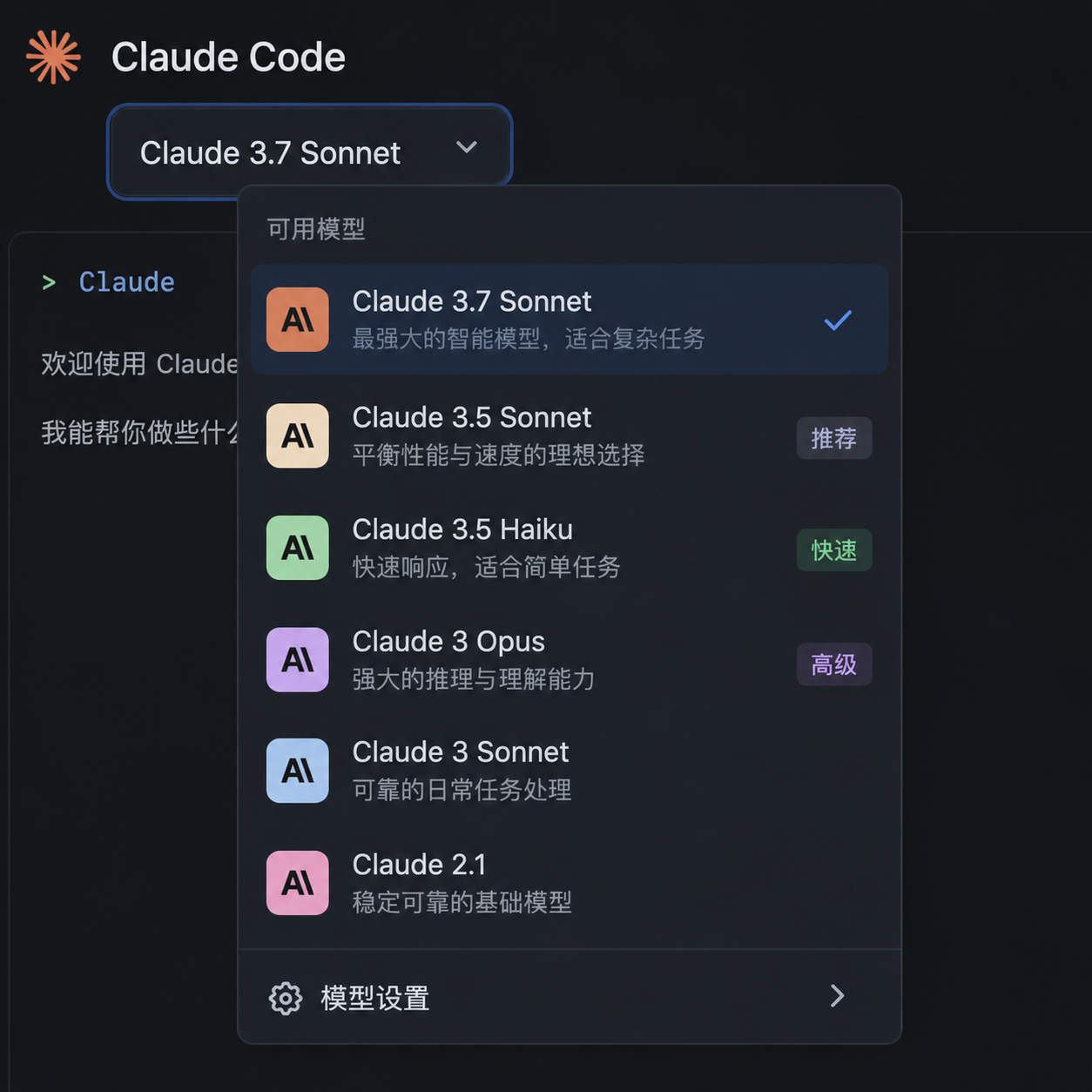
Scroll down in settings until you find the “Model” dropdown. Choose the model you want to use. Common options include:
claude-sonnet-4-5— Balanced for daily coding and chattingclaude-opus-4— Smarter, handles complex tasksgpt-5/gpt-4o— You can also use OpenAI’s models; one Key can call them all
Once selected, click “Save” at the bottom.
Step 5: Test connectivity
Go back to the main interface and create a new conversation. Send something like “Hello, tell me about yourself.”
- If you get a reply within a few seconds—congratulations, you’re done.
- If it spins for a long time with no response or shows an error, check the next section for troubleshooting.
Common pitfalls
1. Error 401 Unauthorized or “Authentication failed”
You missed a character when copying the Key, or there’s an extra space. Go back to OpenAI Hub and copy it again, making sure there are no spaces at the start or end.
2. Error 404 Not Found
The Base URL is wrong. Make sure it’s https://api.openai-hub.com/v1; missing /v1 will cause this.
3. Error model not found
The model name is typed incorrectly, or your account has no access to that model. Check the “Model List” in OpenAI Hub to see which ones are supported and fill accordingly.
4. Connection timeout
Most likely a network issue. If you’re on a corporate or school network, it may block the API domain. Try a different network.
Advanced: Switching models without reconfiguring
The great thing is that one OpenAI Hub Key works with Claude, GPT, Gemini, and more. If you want to switch models, just change the dropdown in Claude Code settings—no need to change the Key or URL.
Now you can write code, fix bugs, and ask questions in the Claude Code desktop version just like the original—no difference in experience.